By
By 
Choose apps that prioritize speed over feature bloat—look for interfaces that put your most-used tools (exposure, contrast, saturation) within one tap of opening a photo. Download mobile editors with gesture-based controls like swipe-to-adjust sliders rather than hunting through nested menus, shaving seconds off every edit. Leverage preset systems that let you apply consistent looks across photo batches in under five seconds per image, then fine-tune only what needs adjustment.
The difference between quick photo editing and frustrating mobile workflows often comes down to strategic tool selection and mastering mobile editing techniques that eliminate wasted motion. Professional photographers editing hundreds of images monthly don’t rely on complex desktop software for every task—they’ve identified which mobile apps deliver 90% of the results in a fraction of the time.
Today’s leading quick-edit apps combine AI-powered automatic adjustments with intuitive manual controls, letting you rescue underexposed vacation photos during your commute or polish social media content between meetings. But raw speed means nothing if your edits look rushed or your learning curve spans weeks. The sweet spot exists where capability meets efficiency—apps sophisticated enough to handle challenging lighting situations yet streamlined enough that you’re not consulting tutorials for basic tasks.
This guide cuts through the noise of 200+ photo editing apps available today, focusing specifically on solutions that respect your time without compromising creative control.
What Makes a Photo Editing App Actually Quick?

Speed vs. Simplicity: Understanding the Difference
A simple interface doesn’t automatically mean quick editing. Many minimalist apps hide complexity behind multiple screens—you tap “enhance,” wait three seconds for processing, then navigate through separate menus for brightness, contrast, and saturation. That’s simplicity creating slowness.
Truly quick apps combine intuitive design with streamlined workflows. For example, Snapseed lets you apply multiple adjustments with simple swipes on a single screen, then instantly see results. Compare this to apps requiring you to tap “apply,” wait for rendering, then open another menu for the next edit—you’ve lost 20 seconds per photo.
Real-world efficiency matters when you’re editing event photos on your commute. An app that batches similar edits across multiple images saves minutes. One that requires individual processing for each photo? You’re still editing when you reach your destination.
The fastest apps also minimize decision fatigue. Instead of presenting 50 filter options, they offer smart suggestions based on your image content. You’re not scrolling endlessly—you’re making one or two taps and moving forward. Speed isn’t just about processing power; it’s about respecting your time through thoughtful design that anticipates your next move.
The Three Pillars of Quick Editing
What separates a truly quick editing app from the rest? It comes down to three fundamental pillars that work together seamlessly.
**Instant Processing Power** forms the foundation. The best quick editing apps leverage your device’s hardware acceleration to render changes in real-time—no waiting for progress bars or spinning wheels. When you apply a filter or adjust exposure, you should see results immediately, not three seconds later. Apps like Snapseed and Lightroom Mobile excel here by optimizing their code for modern mobile processors.
**One-Tap or Minimal-Tap Adjustments** define the user experience. Instead of diving through nested menus, quick apps bring essential tools to the surface. Think preset filters you can swipe through, slider-based adjustments that feel intuitive, or smart crop suggestions that appear automatically. The goal is reducing friction—getting from raw photo to finished image in under a minute.
**Smart AI-Assisted Tools** complete the trinity by predicting your editing needs. Modern apps analyze your photo’s content and automatically suggest relevant adjustments: sky enhancement for landscapes, portrait retouching for headshots, or perspective correction for architectural shots. This intelligent assistance doesn’t just save time—it helps less experienced editors achieve professional-looking results without mastering complex techniques first.
Top Quick Photo Editing Apps Worth Your Time
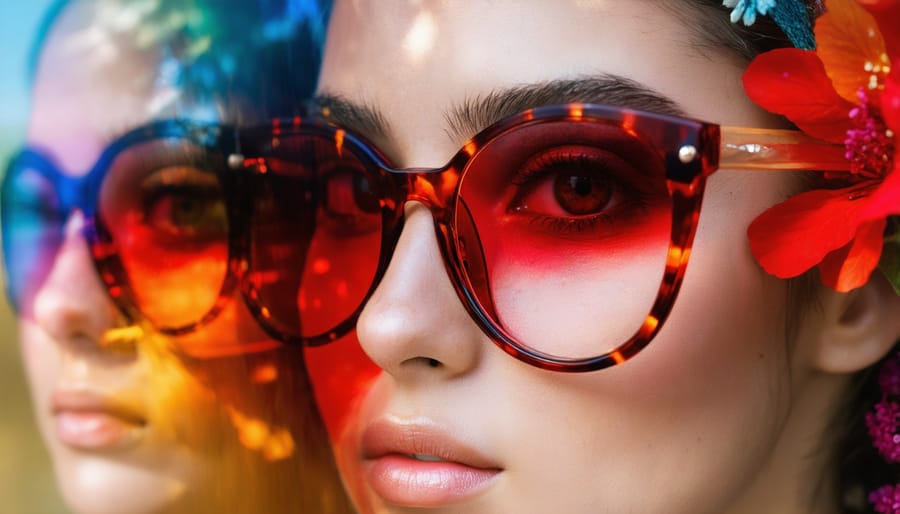
Snapseed: The Speed Demon for Enthusiasts
Google’s Snapseed stands out as arguably the fastest professional-grade mobile editor available—and it’s completely free. What makes it genuinely quick isn’t just responsive performance, but how its interface anticipates your workflow.
The app’s gesture-based controls eliminate menu hunting entirely. Swipe vertically to select your adjustment parameter, then horizontally to fine-tune it. This intuitive system means you can dial in exposure, saturation, or warmth in seconds without lifting your finger. Compare this to apps requiring multiple taps through menus, and you’ll save 5-10 seconds per adjustment—time that compounds quickly across multiple edits.
Snapseed’s Selective Adjust tool deserves special mention for speed editing. Place up to eight control points anywhere on your image, and each one creates an intelligent mask that automatically detects similar tones and colors. Need to brighten just the subject’s face in a backlit portrait? One tap and two swipes handles it in under five seconds. Traditional layer-based masking in other apps could take minutes for similar results.
The Healing tool operates with remarkable efficiency, removing unwanted elements in real-time as you brush. I’ve removed power lines from landscape photos in under 30 seconds—a task that once required desktop software and considerably more patience.
For real-world context, a typical social media edit (crop, exposure correction, selective brightening, and minor healing) takes about 45-60 seconds in Snapseed once you’ve learned the gestures. The same workflow in menu-driven apps typically runs 90-120 seconds. That efficiency becomes significant when you’re editing vacation photos or maintaining an active Instagram presence.
Adobe Lightroom Mobile: Professional Power, Streamlined
Adobe Lightroom Mobile deserves special attention because it bridges a crucial gap—offering genuinely professional capabilities without sacrificing speed. While it has a steeper learning curve than one-tap editors, the payoff is substantial for anyone serious about mobile photography.
The app’s real strength lies in its preset system. Once you’ve created or downloaded presets that match your style, you can apply sophisticated edits with a single tap. Think of presets as recipes—someone else figured out the perfect combination of adjustments, and you’re simply applying their formula. The Adobe community offers thousands of free presets, from moody cinematic looks to bright and airy styles. After applying a preset, you can fine-tune individual sliders in seconds.
Lightroom’s auto-adjustments have become impressively intelligent. The AI-powered “Auto” button now produces surprisingly usable results, especially for exposure and white balance corrections. It’s a legitimate starting point that often gets you 70% of the way there, letting you focus on creative refinements rather than technical corrections.
Batch editing transforms your workflow when processing multiple photos from the same shoot. Edit one image to perfection, then copy those settings and paste them across dozens of similar shots. This feature alone can turn a 30-minute editing session into five minutes.
The learning curve is real but manageable. Invest an hour exploring Lightroom Mobile techniques, and you’ll unlock editing speed that rivals desktop software. For photographers wanting control without complexity, it’s the sweet spot between professional power and mobile convenience.
VSCO: Quick Aesthetic Editing for Social Media
VSCO has earned its reputation among social media creators for delivering consistently beautiful edits in remarkably little time. The app’s carefully curated collection of film-inspired presets transforms ordinary photos into Instagram-ready images with a single tap, making it ideal when you need polished results without the learning curve of complex editing tools.
What sets VSCO apart is its thoughtful approach to aesthetic consistency. Unlike apps that overwhelm you with hundreds of random filters, VSCO organizes its presets around specific photographic styles—from vintage film emulations to modern minimalist looks. This means you can develop a signature style for your social media presence and apply it across multiple photos in seconds. Many professional photographers actually use VSCO as their mobile workhorse precisely because it maintains this visual coherence.
The editing workflow moves quickly: select your preset, then fine-tune with intuitive sliders for exposure, contrast, and color temperature if needed. The interface strips away distractions, letting you focus on the creative decisions rather than hunting through menus. While some presets require a subscription, the free options provide plenty of versatility for everyday editing, making VSCO accessible whether you’re a casual user or serious content creator looking to streamline your mobile workflow.
TouchRetouch: The Fastest Way to Remove Unwanted Objects
TouchRetouch has earned its reputation by doing one thing brilliantly: removing unwanted objects from your photos with remarkable speed and precision. Unlike comprehensive editing apps that require navigating multiple menus, this specialized tool gets straight to the point.
The app’s intelligent algorithm analyzes the surrounding pixels and seamlessly fills in the area where your unwanted element once existed. Simply brush over tourists photobombing your architectural shot, power lines cutting through your landscape, or stray trash in an otherwise perfect beach scene—the app handles the rest in seconds.
Real-world scenarios where TouchRetouch becomes indispensable include property photography when you need to remove a parked car from a driveway, food photography when an unsightly reflection mars your composition, or travel photography when you can’t control every element in a busy location. I’ve watched photographers save hours of desktop Photoshop work by quickly cleaning up a dozen images on-location before leaving a shoot.
The app excels at removing linear objects like wires and cables, making it particularly valuable for urban and street photographers. While complex removals may require more advanced software, TouchRetouch handles approximately 80% of common object removal tasks instantly—making it an essential time-saver for mobile editors.
Essential Quick Editing Techniques Every Photographer Should Master
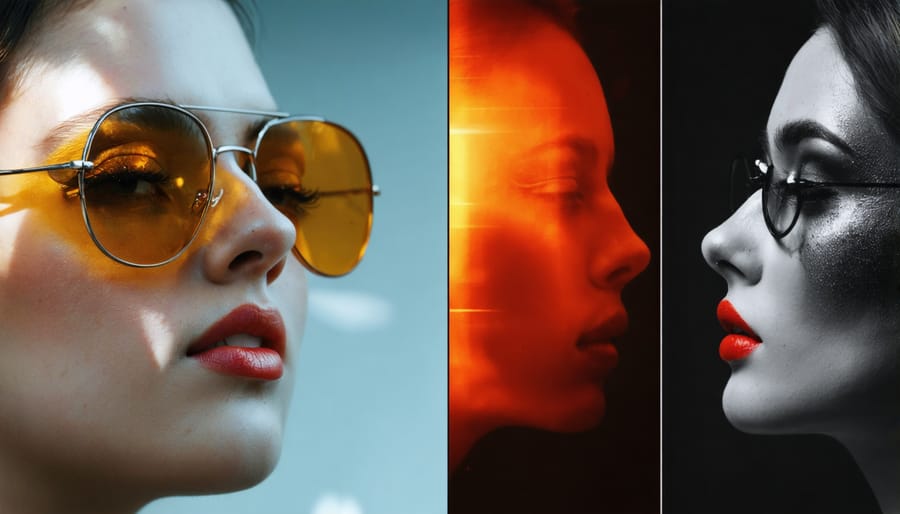
The 5-Second Exposure Fix
Exposure problems plague even experienced photographers, but modern editing apps can fix them in literal seconds. The key is understanding your histogram—that mountain-shaped graph showing light distribution in your image. When the “mountain” clusters too far left, your photo’s underexposed; too far right means overexposure.
Start by tapping your app’s auto-exposure button. Most quick editing apps like Snapseed and Lightroom Mobile analyze your histogram instantly and apply intelligent corrections. This gets you 80% of the way there in one tap.
Now for the fine-tuning: If shadows still look muddy, lift the shadows slider slightly (try +15 to +30). Blown-out highlights? Pull down the highlights slider by -20 to -40 until detail returns. Watch your histogram shift as you adjust—aim for a balanced distribution across the graph rather than spikes at either extreme.
Here’s a pro tip: rather than cranking up overall exposure, independently adjust highlights, shadows, and midtones. This preserves detail in both bright skies and dark foregrounds. The whole process takes five seconds once you’ve practiced a few times, and the results dramatically outperform a single exposure slider.
One-Tap White Balance Correction
White balance correction can instantly rescue photos with unnatural color casts, and modern editing apps make this remarkably simple. Most apps offer two primary methods: automatic white balance adjustment and manual eyedropper tools.
The auto white balance feature analyzes your entire image and neutralizes color casts with a single tap. It works best on photos with obvious color temperature issues—like indoor shots under tungsten lighting that appear too orange, or overcast outdoor scenes that look excessively blue. However, auto correction sometimes misinterprets creative color grading as an error, so always preview before committing.
The eyedropper tool gives you more control. Simply tap on something in your photo that should be neutral gray or white—a white shirt, concrete sidewalk, or cloudy sky. The app then recalibrates all colors accordingly.
The most common mistake? Selecting colored objects thinking they’re neutral. That vibrant “white” wall might actually be cream-colored, throwing off your entire correction. Instead, look for objects you know are truly neutral. Another pitfall is over-correcting warm sunset photos, stripping away their natural golden ambiance. When in doubt, use the eyedropper on multiple neutral points and compare results before deciding.
Quick Cropping for Maximum Impact
Composition can make or break your photo, and modern editing apps put powerful cropping tools right at your fingertips. Most quick photo editing apps include preset aspect ratios—1:1 for Instagram, 16:9 for YouTube thumbnails, 4:5 for vertical posts—that eliminate guesswork and save precious seconds when you’re posting across multiple platforms.
The rule of thirds overlay is your secret weapon here. When you activate this grid in your cropping tool, you’ll see four intersection points where viewers’ eyes naturally land. Position your main subject at one of these points rather than dead center, and watch your composition instantly improve. I’ve salvaged countless “almost great” shots simply by shifting the crop to align a subject’s eyes or a landscape’s horizon with these guides.
Don’t overlook the straightening tool, often nestled within crop settings. A horizon that’s off by even two degrees feels noticeably wrong to viewers, but the auto-level feature in apps like Snapseed or Lightroom Mobile corrects this in one tap, giving your images that polished, professional quality.
Building Your Quick Editing Workflow

Creating and Using Presets Effectively
Presets are your secret weapon for maintaining consistency across your photo stream while dramatically reducing editing time. Think of them as your personal editing recipes—capturing the exact combination of adjustments that define your visual style.
Start by editing a well-exposed photo until you’re completely satisfied with the look. Most quick editing apps let you save these adjustments as a custom preset with a single tap. Name it descriptively—”Golden Hour Warmth” or “Moody Blue Hour”—so you’ll remember when to use it.
The key to effective presets is understanding they’re starting points, not one-size-fits-all solutions. A preset that works beautifully for outdoor portraits might need tweaking for indoor shots. Before applying any preset, glance at your photo’s exposure and white balance. If your image is significantly darker or lighter than the photo you created the preset from, adjust exposure first, then apply your preset.
Create separate presets for common scenarios you encounter regularly: bright daylight, overcast conditions, indoor artificial light, and sunset. This targeted approach means you’re always working from relevant adjustments rather than fighting against inappropriate settings. Many photographers maintain a core collection of three to five versatile presets that cover 80% of their editing needs, allowing them to process entire photo sessions in minutes rather than hours.
The Edit-in-Layers Approach for Speed
The fastest mobile editors work systematically, following a layer-based editing approach that prevents unnecessary backtracking. Think of it like building a house—you wouldn’t paint the walls before fixing the foundation.
Start with exposure adjustments first. Correct brightness, shadows, and highlights before touching anything else. This establishes your image’s tonal foundation and prevents you from chasing your tail later. For example, if you boost saturation before fixing underexposure, you’ll likely need to readjust colors after brightening, wasting precious time.
Next, move to color corrections—white balance, temperature, and saturation. With proper exposure already set, your color adjustments will be accurate the first time.
Then tackle sharpness and detail refinements. Since these adjustments amplify what’s already there, they work best when applied to properly exposed and color-corrected images.
Finally, apply finishing touches like vignettes, grain, or selective adjustments. This sequential workflow might feel rigid initially, but it dramatically reduces editing time by eliminating the need to constantly revisit earlier adjustments. Professional editors swear by this method because each layer builds logically on the previous one.
When Quick Isn’t Enough: Knowing Your App’s Limitations
Quick photo editing apps are incredibly powerful, but let’s be honest—they’re not miracle workers. Understanding their limitations will save you frustration and help you choose the right tool for each project.
The most significant trade-off is precision. When you’re tapping and swiping on a smartphone screen, you’re working with far less control than a mouse and keyboard offer. Tasks like detailed masking, fine-tuning specific color ranges, or making pixel-perfect adjustments become exponentially harder on mobile devices. If you’re trying to remove complex backgrounds, composite multiple images with seamless blending, or perform frequency separation for advanced skin retouching, you’ll likely hit the ceiling of what quick apps can deliver.
Processing power presents another real limitation. While modern smartphones are impressive, they still can’t match desktop computers for handling large RAW files or applying processor-intensive effects. You might notice your quick editing app struggling with 50-megapixel images or becoming sluggish when stacking multiple adjustment layers. This isn’t a flaw—it’s simply physics and engineering constraints at work.
Batch processing and workflow automation are often limited or nonexistent in mobile apps. If you’re editing hundreds of photos from a wedding or event with consistent adjustments, desktop software remains the more efficient choice. The few mobile apps offering batch capabilities typically provide basic adjustments only.
Color accuracy can also be problematic. Smartphone screens, despite improvements, aren’t calibrated monitors. If you’re editing photos destined for print or professional delivery, finalizing them on a properly calibrated desktop display becomes essential.
The sweet spot for quick editing apps? Social media posts, rapid content creation, on-location client previews, and straightforward enhancements that don’t require surgical precision. Recognize these boundaries, and you’ll know exactly when to reach for your mobile editor versus when to switch to desktop software.
Making Quick Apps Even Faster: Pro Tips
Gesture Controls and Shortcuts You’re Probably Missing
Most editing apps hide their most powerful features behind gestures you’d never discover by accident. In Snapseed, for example, a simple swipe up or down adjusts the intensity of any filter in real-time—no need to fiddle with sliders. Two-finger rotation activates perspective correction instantly, saving you from hunting through menus.
Lightroom Mobile users often miss the double-tap trick: double-tap any slider to reset it to zero, perfect when you’ve over-edited and need a quick undo for just one adjustment. Long-pressing the compare button (the split-screen icon) shows your before image while held, then releases back to after—much faster than toggling repeatedly.
VSCO’s hidden gem is the gesture histogram: swipe down on your image while editing to see real-time exposure data without cluttering your workspace. In TouchRetouch, drawing a continuous circle around an object automatically selects it for removal, eliminating the need for careful tracing.
The real time-saver? Most apps support pinch-to-zoom during adjustments. You can magnify specific areas while tweaking sharpness or clarity, ensuring precision edits without switching tools. These shortcuts might seem minor individually, but together they’ll cut your editing time nearly in half.
Optimizing Your Phone for Faster Photo Processing
Even the most powerful editing app can’t perform miracles on a sluggish device. Let’s tackle the practical steps that’ll keep your phone running smoothly during those critical editing sessions.
**Storage is your foundation.** When your device storage dips below 10-15% capacity, performance tanks noticeably. Photos and cached app data are the usual culprits—I recommend offloading edited images to cloud storage weekly and clearing your editing app’s cache monthly through your phone’s settings.
**Background apps drain processing power.** Before diving into editing, close unused applications completely (not just minimizing them). That podcast app or social media feed running in the background? They’re competing for the same processor resources your editing app needs. On iOS, swipe up from the bottom; on Android, use the recent apps button and close everything non-essential.
**Adjust these specific settings:** Disable automatic app updates during editing sessions, turn off background app refresh for non-critical apps, and consider enabling your phone’s performance or gaming mode if available. These modes prioritize processing power for your active application.
Finally, restart your phone before important editing work. It clears temporary files and refreshes system resources—a simple habit that makes a tangible difference in responsiveness.
Quick photo editing apps have fundamentally transformed how we approach photography in the digital age. They’ve democratized sophisticated editing techniques, putting professional-grade tools literally at our fingertips. But the true mastery lies not just in speed—it’s in finding that sweet spot where efficiency amplifies rather than diminishes your creative vision.
Every photographer’s workflow is unique, shaped by their style, subject matter, and personal preferences. I encourage you to experiment with different apps and techniques discussed throughout this article. Download a few options, test their interfaces during actual shoots, and pay attention to which tools feel intuitive versus cumbersome. Some photographers thrive with gesture-based controls, while others prefer traditional sliders. There’s no universal “best” approach.
Remember that quick editing should serve your creativity, not constrain it. Yes, batch processing and presets save precious time, but they work best when they handle the technical groundwork—freeing you to focus on the artistic decisions that truly matter. The goal isn’t to rush through every edit, but to eliminate unnecessary friction so you can spend more energy on images that deserve your full attention. Speed with intention—that’s the philosophy that separates efficient editing from merely fast editing.


 By
By