By
By 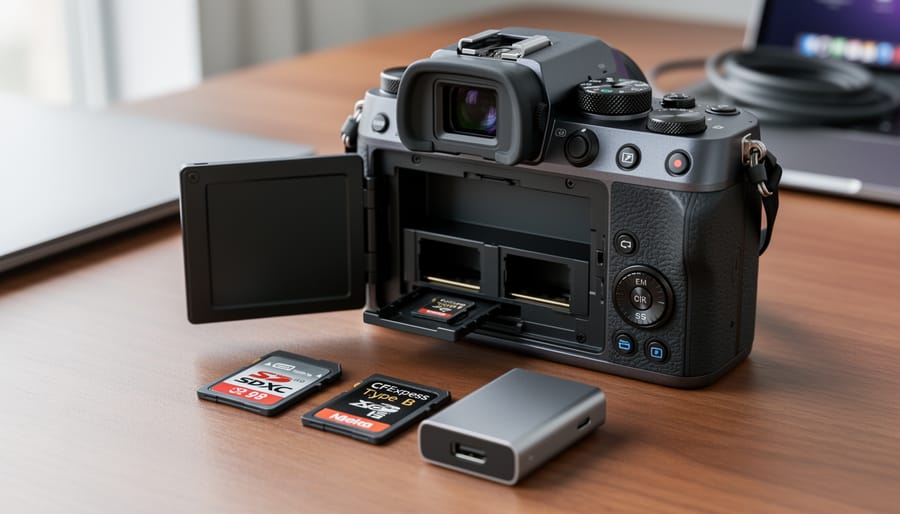
Match your memory card’s file system to your camera’s specifications before shooting—most modern cameras use exFAT for cards larger than 32GB, while older models require FAT32. Check your camera manual or manufacturer’s website to confirm compatibility, as using the wrong format can result in unrecognized cards, corrupted files, or shooting limitations that leave you unable to capture critical moments.
Format cards in-camera rather than on your computer whenever possible. This ensures the file system structure aligns perfectly with your camera’s requirements and creates the proper directory hierarchy for storing images and metadata. When you format on a computer, you risk applying settings that seem correct but create subtle incompatibilities—like allocation unit sizes that cause write errors during high-speed burst shooting or 4K video recording.
Understand the practical limitations of each file system before purchase. FAT32 restricts individual file sizes to 4GB, which becomes problematic when recording high-bitrate video or shooting extended time-lapses. ExFAT eliminates this restriction and handles larger card capacities efficiently, making it the standard for professional work. However, some older card readers and devices don’t recognize exFAT, creating workflow bottlenecks when you need to transfer files quickly.
Test new cards immediately after formatting by shooting a variety of file types—RAW stills, video clips, and continuous burst sequences. This verification process reveals compatibility issues before critical shoots, giving you time to troubleshoot or replace problematic media. Pay attention to write speeds during testing, as file system overhead can impact real-world performance even when technical specifications suggest compatibility.
What Recording Media Actually Means for Your Camera
When you press your camera’s shutter button, something remarkable happens in a fraction of a second. Your sensor captures light and transforms it into digital data—millions of pixels that need somewhere to go. That’s exactly where recording media steps in, serving as the essential bridge between that raw sensor data and the image files you’ll eventually edit, share, or print.
Recording media isn’t just a storage device you slot into your camera. Think of it more like a high-speed highway where data races from your sensor to permanent storage. The memory card you choose directly impacts how quickly your camera can write those files, how many shots you can capture in rapid succession, and whether you can record 4K video without dropped frames or error messages.
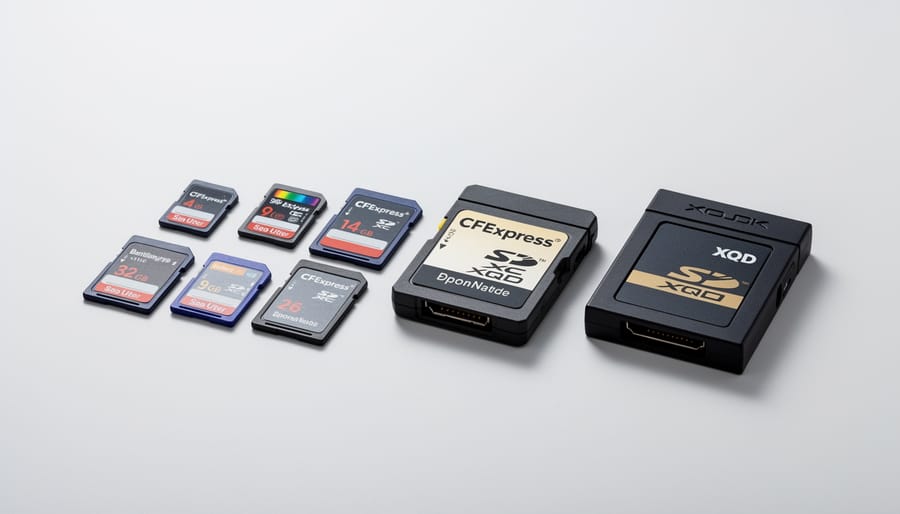
In practical terms, recording media encompasses several formats you’ve likely encountered: SD cards (Secure Digital), the newer CFexpress cards, the older CompactFlash standard, and XQD cards. Each format represents different physical sizes, connection types, and performance capabilities. Your smartphone might use a microSD card, while professional cameras often require full-size SD cards, CFexpress Type B, or dual-card slots supporting multiple formats.
Here’s what makes this more than simple storage: recording media must keep pace with increasingly demanding cameras. Modern sensors generate enormous files—a single RAW image from a 45-megapixel camera can exceed 80MB. Shoot a burst of twenty images, and your card must write over 1.6GB almost instantly. Video recording amplifies this challenge further, requiring sustained write speeds that some cards simply cannot maintain.
The recording media you select determines your workflow efficiency and reliability. A slow card creates bottlenecks, leaving you staring at a buffer-full indicator while decisive moments pass. Conversely, quality media matched to your camera’s capabilities ensures seamless operation, whether you’re photographing a wedding, capturing wildlife action, or recording professional video content. Understanding this relationship helps you make informed choices rather than simply grabbing the cheapest option available.
The File System Problem Nobody Talks About
FAT32: The Old Reliable With Big Limitations
FAT32 has been around since 1996, making it the most universally compatible file system you’ll encounter. Nearly every camera, computer, and operating system can read FAT32 cards without any special drivers or software. This universal recognition makes it incredibly convenient for sharing files across different devices and platforms.
However, FAT32 comes with a deal-breaking limitation for modern photographers and videographers: it cannot handle individual files larger than 4GB. This might sound like plenty of space, but here’s where reality hits hard.
If you’re shooting 4K video at high bitrates, you’ll reach that 4GB ceiling in just a few minutes. For example, recording 4K at 100Mbps will max out at roughly 5 minutes before your camera automatically splits the recording into a new file. Some cameras handle this split seamlessly, continuing to record across multiple files. Others stop recording entirely, forcing you to manually restart and potentially missing critical moments.
This fragmentation creates headaches during editing too. Instead of one continuous clip, you’ll need to merge multiple files in post-production, adding extra steps to your workflow. Professional videographers working on time-sensitive projects find this particularly frustrating, as it complicates file management and increases the risk of accidentally overlooking segments.
For still photographers shooting RAW files, FAT32 typically works fine since individual photos rarely exceed 4GB. But the moment you venture into video territory, FAT32 becomes a significant bottleneck worth avoiding.
exFAT: The Modern Standard That Mostly Works
exFAT represents the sweet spot for most modern photographers, particularly if you’re shooting high-resolution video or burst sequences of large RAW files. Unlike FAT32’s frustrating 4GB file limit, exFAT handles files well beyond what most cameras can produce, making it the go-to choice for 4K and 8K video recording. Most cameras and memory cards manufactured after 2010 support exFAT natively, and it works seamlessly across Windows and Mac computers without additional software.
Here’s the catch: older devices can stumble with exFAT. I’ve encountered situations where perfectly good SD cards formatted as exFAT wouldn’t register in cameras from the early 2010s or budget card readers. Some older Windows XP systems and early Mac OS X versions require updates to recognize exFAT volumes. This creates occasional headaches when transferring files to legacy backup systems or sharing media with colleagues using older equipment.
The practical solution? Check your camera’s manual for supported file systems before formatting. If you’re working exclusively with modern gear and shooting large files, exFAT provides excellent compatibility and performance. However, keep a FAT32-formatted backup card handy if you occasionally need to interface with older equipment or specialized devices that haven’t kept pace with newer standards.
When Your Camera Formats Differently Than Your Computer Expects
Your camera’s formatting system speaks a specific language, and sometimes your computer doesn’t understand it perfectly. When you format a card in-camera, your camera typically uses exFAT or FAT32, depending on the card’s capacity. This works seamlessly for most photographers, but problems arise when you’ve previously formatted that same card using a different operating system on your computer.
Here’s a real-world scenario: you format an SD card on your Windows machine, then pop it into your camera. The camera might accept it initially, but you could encounter write errors mid-shoot or discover corrupted files later. This happens because Windows, Mac, and Linux each handle partition tables and file structures slightly differently, even when using the same file system format.
The solution is straightforward: always format your cards in the camera you’ll be using them with. Your camera knows exactly how to structure the card for optimal performance and compatibility with its own systems. If you must format on a computer, use dedicated formatting tools designed for camera media rather than your operating system’s built-in formatter. This simple practice prevents mysterious errors and ensures your cards work reliably when it matters most.
Speed Classes Decoded: What Those Numbers Really Mean
The Minimum Speed You Need for Your Shooting Style
Understanding what speed you actually need saves money and prevents frustration during critical shoots. Your shooting style dictates your minimum requirements more than marketing specs suggest.
For casual photography—family snapshots, travel photos, and everyday moments—cards rated at 30-45 MB/s write speed handle the job beautifully. You’re typically shooting single frames with pauses between shots, giving your camera plenty of time to process images. Even budget-friendly SD cards work reliably for these situations.
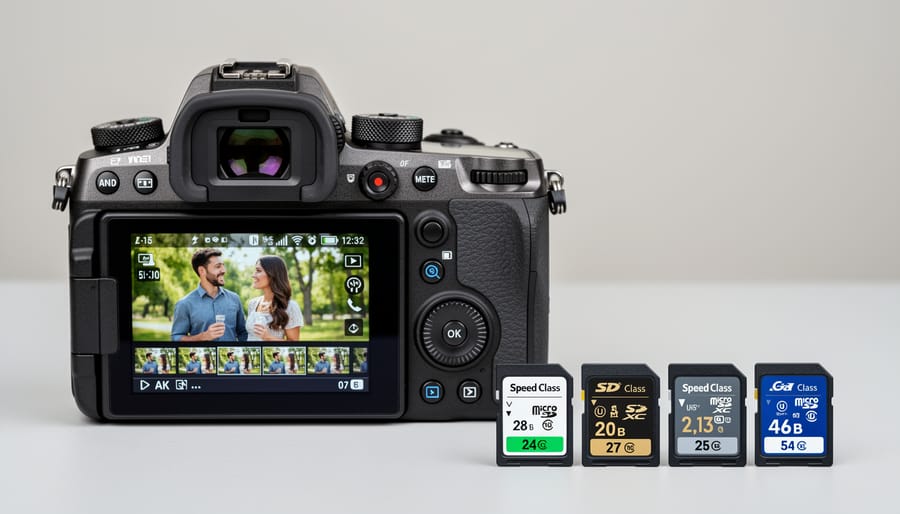
Professional video work demands sustained write speeds. Recording 4K video at 100 Mbps requires cards with minimum write speeds of at least 30 MB/s (V30 rating) to prevent dropped frames. Shooting 6K or 8K? You’ll need V60 or V90 cards that maintain 60-90 MB/s consistently. The key word here is sustained—peak speeds don’t matter when your camera stops recording mid-ceremony because the card can’t keep up.
High-speed burst shooting presents the toughest challenge. Wedding photographers firing 10 frames per second need fast cards to clear their camera’s buffer quickly. Imagine capturing the bouquet toss: you shoot a burst, and suddenly the groom’s parents want a photo. With a slow card, you’re waiting while images transfer from buffer to card, missing spontaneous moments. Cards rated 150 MB/s or higher mean your buffer clears in seconds rather than awkward minutes.
Sports and wildlife photographers benefit most from premium cards. When shooting continuous bursts of 20-megapixel raw files, the difference between 90 MB/s and 250 MB/s cards determines whether you capture the decisive moment or watch your buffer fill completely.
Why Read Speed Matters More Than You Think
Most photographers obsess over write speeds when choosing recording media, but here’s something that might surprise you: read speed can be just as critical for your actual workflow. Think about it—you shoot for maybe an hour or two, but then you spend significantly more time transferring those files to your computer for editing.
Imagine you’ve just finished photographing a wedding with 2,000 RAW files. With a slow read speed of 90MB/s, transferring those images could take 20-30 minutes. But a card with 300MB/s read speeds? You’re looking at under 10 minutes. That’s time you could spend starting your culling process or simply getting home earlier.
Read speed becomes even more important for on-location backup workflows. Professional photographers often duplicate their cards immediately after a shoot for safety. Faster read speeds mean less time standing around waiting, which matters when you’re working outdoors or need to move quickly between locations.
Here’s the catch: your card reader matters too. That blazing-fast UHS-II card won’t deliver its full read speed if you’re using an old USB 2.0 reader. Investing in quality readers that match your card’s capabilities ensures you’re actually getting the performance you paid for—and keeping your workflow as efficient as possible.
When Marketing Numbers Don’t Match Real Performance
You’ve probably seen those impressive speed ratings plastered across memory card packaging—300MB/s, 600MB/s, or even faster. Here’s the catch: those numbers usually represent peak read speeds under ideal conditions, not the sustained write speeds you’ll actually experience when recording 4K video or rapid-fire bursts. Think of it like a car’s advertised horsepower versus real-world fuel economy—marketing highlights the best-case scenario.
For video work, sustained write speed matters far more than peak performance. A card might burst to 200MB/s initially but drop to 90MB/s after a few seconds, causing dropped frames or recording failures. This becomes especially problematic with high-bitrate formats and RAW footage compression issues. Look for cards with Video Speed Class ratings (V30, V60, V90) instead—these guarantee minimum sustained speeds, giving you reliable performance when it counts most during that once-in-a-lifetime shot.
Matching Recording Media to Your Camera System
DSLR and Mirrorless Camera Considerations
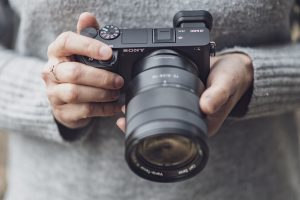
Modern DSLR and mirrorless cameras come with varying card slot configurations, and understanding these differences can save you from frustrating compatibility issues. Just as equipment compatibility matters with lenses, recording media compatibility is equally critical for seamless shooting.
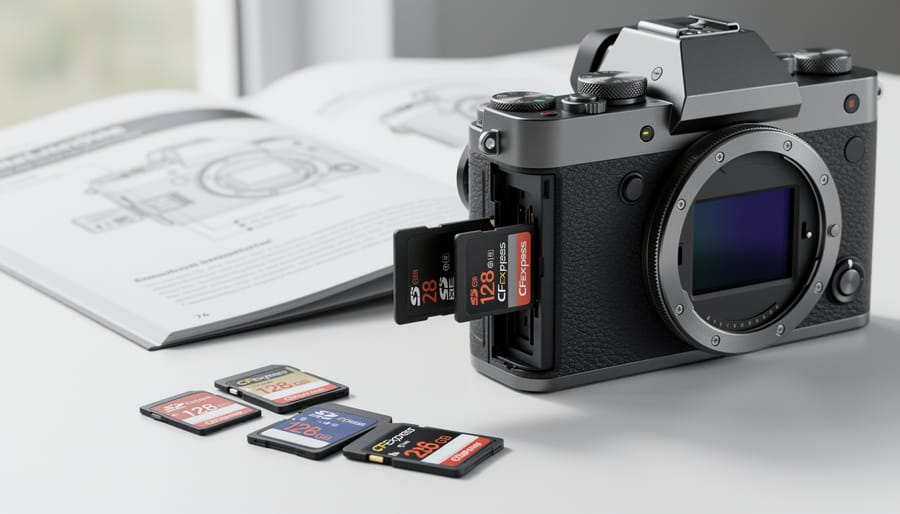
Single versus dual card slots represents a significant dividing line in camera design. Entry-level models like the Canon EOS R10 feature a single UHS-II SD card slot, which works perfectly fine for most shooting scenarios. However, professional bodies like the Nikon Z9 offer dual CFexpress Type B slots, providing redundancy that wedding and event photographers rely on when failure isn’t an option.
Here’s where things get interesting: some cameras are genuinely pickier about card brands and speeds than others. The Sony A7 IV, for example, has been reported to occasionally throw errors with certain off-brand SD cards, even when those same cards work flawlessly in Canon bodies. This isn’t Sony being difficult; it’s about how different manufacturers implement their card controllers and firmware.
Mixed slot configurations add another layer of complexity. The Canon EOS R5 pairs a CFexpress Type B slot with an SD UHS-II slot. While this offers flexibility, the two slots perform at vastly different speeds. Shooting 8K RAW to the SD slot will disappoint you quickly, while the CFexpress slot handles it effortlessly.
Always check your camera’s manual for minimum speed ratings, especially for video recording, and consider buying from retailers with solid return policies when trying new card brands.
Action Cameras and Drones Have Special Needs
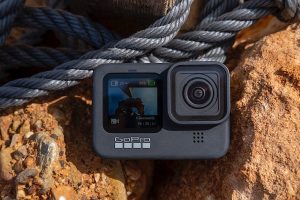
Action cameras and drones push recording media to their limits in ways that traditional cameras don’t. These devices often record high bitrate 4K or even 8K video, sometimes at 60 or 120 frames per second, while bouncing around on a helmet or hovering hundreds of feet in the air. This means they need cards with sustained write speeds, not just impressive peak performance numbers.
Here’s where things go wrong: pop a regular card into your action camera, and you might see dropped frames, stuttering video, or the dreaded “card error” message mid-flight. I’ve watched drone pilots lose entire aerial shoots because their bargain-priced cards couldn’t maintain the write speed needed for 4K60 footage. The camera would stop recording without warning, sometimes at the worst possible moment.
Look for cards specifically rated for these devices. GoPro, for instance, recommends V30 rated cards as a minimum for 4K recording, but V60 or V90 for higher frame rates. DJI drones have similar requirements. The packaging should explicitly mention compatibility with action cameras or drones. Using the right card isn’t just about performance, it’s about reliability when you can’t simply reshoot the moment. A skydiving video or once-in-a-lifetime aerial shot deserves media that won’t let you down.
Cinema Cameras and Professional Video Requirements
Cinema cameras and high-end video production demand significantly more from recording media than standard photography. When you’re capturing RAW video files or working with high-bitrate codecs like ProRes RAW or Blackmagic RAW, you’re generating enormous amounts of data every second. A cinema camera recording 6K RAW at 60fps might create files exceeding 500MB per second, which means a standard SD card simply won’t cut it.
For professional video workflows, CFexpress Type B cards have become the go-to solution, with write speeds reaching 1700MB/s or higher. These cards use the exFAT file system to handle the massive file sizes that cinema work produces. Some cinema cameras also use proprietary media like RED’s REDMAG or specialized SSDs that connect directly to the camera body.
The key consideration here isn’t just speed, but sustained write performance. Unlike burst photography, video recording requires consistent high-speed writing without dropouts. Always verify your camera manufacturer’s approved media list, as using non-certified cards can result in dropped frames or corrupted footage during critical takes.
Common Compatibility Issues and How to Avoid Them
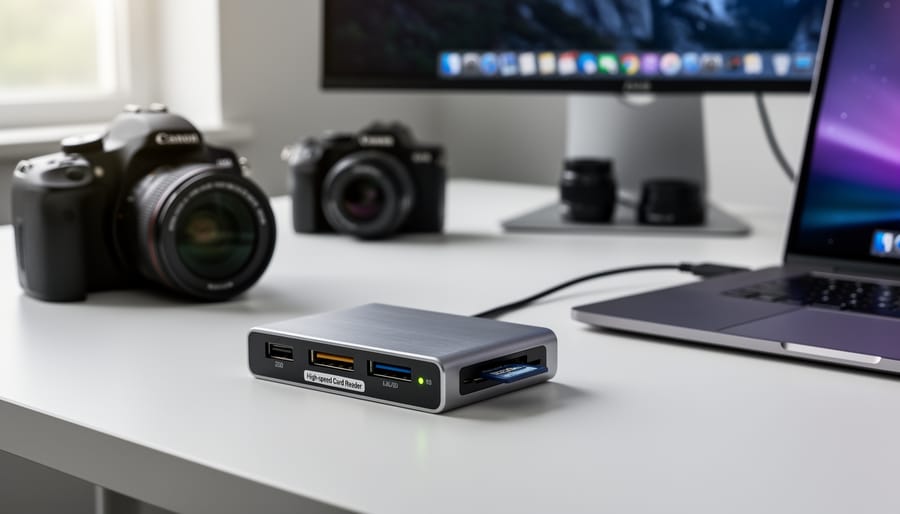
The Card That Works in Your Camera But Not Your Computer
You’ve just wrapped a brilliant shoot, your camera played back the files beautifully, but now your computer refuses to recognize the card. Frustrating, right? This common scenario usually points to one of two culprits: file system compatibility or card reader issues.
First, check if your card reader supports your card’s capacity and speed class. Older USB 2.0 readers often struggle with cards larger than 32GB or newer UHS-II formats. Try a different USB port or an updated card reader—many camera compatibility issues stem from outdated hardware rather than the card itself.
If the reader isn’t the problem, your card might be formatted with exFAT (common for cards over 32GB), which some older operating systems don’t recognize without updates. Windows 7 and earlier versions may need patches to read exFAT cards.
Here’s your troubleshooting sequence: Update your operating system first, then try a different card reader. If problems persist, connect your camera directly via USB cable as a temporary solution. This bypasses the reader entirely and confirms whether the card or reader is causing trouble. Most importantly, avoid reformatting the card until you’ve recovered your files—reformatting erases everything.
Preventing Corruption and Data Loss
Your memory cards might survive years of abuse, but they won’t last forever—and they can fail spectacularly when you least expect it. Here’s how to keep your data safe and your cards healthy.
Always eject your cards properly. This means using your camera’s “format card” or power-off procedure rather than yanking cards mid-write. I learned this the hard way during a wedding when I pulled a card too quickly—the resulting corruption cost me an hour of recovery work and nearly gave me a heart attack. If you’re using a wireless tethering workflow, you reduce this risk since images transfer automatically without physical card handling.
Avoid mixing formats on the same card. Don’t shoot photos, then video, then photos again without formatting between different projects. While modern cards handle this better than older ones, you’re asking for file system confusion that can lead to unreadable files.
Format cards in-camera, not on your computer. Your camera knows exactly how it wants the file system structured. Computer formatting might use different parameters that seem fine initially but cause problems during intensive shooting sequences.
Retire cards after heavy use. Professional photographers typically replace cards every 2-3 years or after major projects. Watch for warning signs: slower write speeds, mysterious errors, or cards that need repeated formatting attempts. When a card starts acting temperamental, that’s your cue to replace it before it fails completely.
Future-Proofing Your Media Investment
Investing in recording media means thinking beyond your immediate needs. Technology moves quickly, and what works perfectly today might become obsolete tomorrow. The key is finding that sweet spot between cutting-edge performance and practical longevity.
Start by observing industry trends rather than jumping on every new format. CFexpress cards offer a perfect example of this principle. While CFexpress Type B has gained strong traction in professional cameras from Canon, Nikon, and others, Type A remains more niche, primarily supported by Sony. If you’re choosing between formats, Type B currently offers better future-proofing due to broader manufacturer support, though Type A’s smaller size appeals to compact camera designs.
Consider backward compatibility when evaluating new standards. Many cameras that accept CFexpress Type B also work with XQD cards, giving you flexibility. Similarly, some devices designed for UHS-II SD cards still function with older UHS-I cards, though at reduced speeds. This compatibility cushion protects your investment if you switch camera systems.
Balance cost against realistic longevity expectations. Memory cards don’t last forever, regardless of quality. Professional photographers often replace cards every three to five years, even if they’re still functional, to avoid potential failures during critical shoots. This reality means you shouldn’t overspend on the absolute latest technology if a slightly older standard meets your performance needs and enjoys wider support.
Pay attention to your camera manufacturer’s roadmap. If your preferred brand consistently adopts certain media types across new models, that’s a strong signal about future compatibility. Canon’s shift toward CFexpress Type B across its professional lineup, for instance, suggests that format will remain relevant for years.
Finally, maintain realistic expectations about speed requirements. A card rated for 800MB/s won’t become useless just because 1700MB/s cards exist. Your current camera likely can’t utilize those extreme speeds anyway. Focus on media that handles your actual workflow, not theoretical maximums, and you’ll avoid both overspending and premature obsolescence.
Understanding recording media compatibility goes far beyond simply checking capacity and speed ratings on the packaging. As we’ve explored throughout this article, file systems, format structures, and camera-specific requirements all play crucial roles in whether your card will work reliably when you need it most. I’ve seen too many photographers learn this lesson the hard way—missing critical shots because they assumed all SD cards were created equal or discovering compatibility issues during a paid wedding shoot.
Before your next important project, take ten minutes to consult your camera’s manual for its specific media recommendations. Many manufacturers list not just card types, but specific brands and models they’ve tested extensively. Even better, buy your cards well before you need them and run real-world tests. Shoot a full session, format the card, fill it again, and verify every file opens correctly. This simple practice has saved countless photographers from disaster.
Think of recording media as an investment in workflow reliability rather than just storage space. A slightly more expensive card that’s fully compatible with your camera and computer will always outperform a bargain option that causes errors or slowdowns. Your time and your images are worth far more than the few dollars you might save on questionable media.



 By
By