By
By 
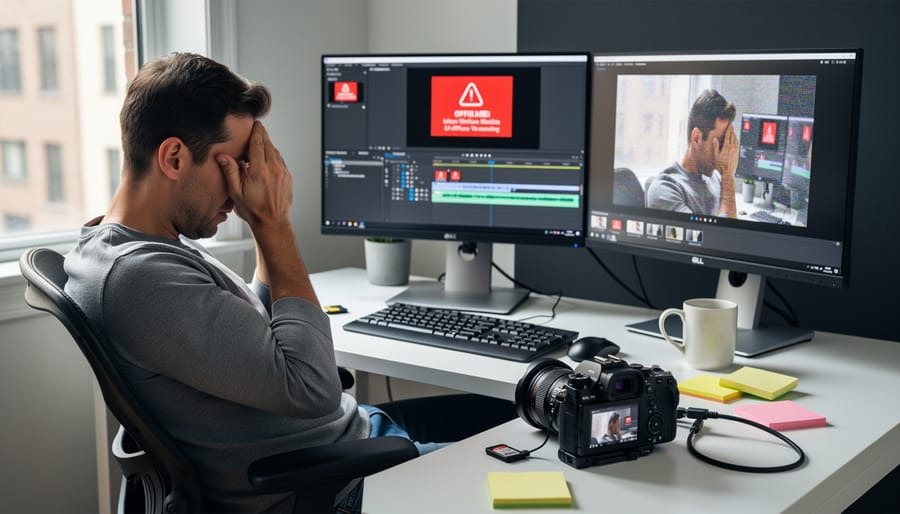
LZW compression creates a frustrating paradox for photographers: it drastically reduces TIFF file sizes from RAW conversions, yet many professional editing applications refuse to open these files or display error messages during import. This compression algorithm, named after its creators Lempel-Ziv-Welch, has been around since 1984 and works brilliantly for storing high-quality images efficiently. The problem isn’t the compression itself—it’s that video editing software and some asset management systems treat LZW-compressed TIFFs as incompatible formats, leaving you staring at error dialogs when deadline pressure is already mounting.
If you’ve ever exported an image sequence from Photoshop or Lightroom only to find your editing timeline rejecting half the files, you’ve encountered this compatibility wall firsthand. The issue stems from how different software developers implement TIFF support. While Adobe applications handle LZW compression seamlessly, many non-linear editors prioritize uncompressed or ZIP-compressed TIFFs for video workflows. DaVinci Resolve, Premiere Pro, and Final Cut Pro each handle LZW differently depending on version and platform, creating an unpredictable landscape where a file that works perfectly on one system fails mysteriously on another.
Understanding when LZW helps versus hinders your workflow means knowing which compression method to choose before you export. This knowledge prevents the time-consuming cycle of re-exporting entire image sequences and helps you establish reliable post-production pipelines that work consistently across different applications and team members.
What is LZW Compression? (The Simple Explanation)
LZW compression is a lossless data compression method that works by finding repeating patterns in your files and replacing them with shorter codes. Think of it like creating a personalized shorthand system while taking notes—if you’re writing about photography repeatedly, you might start using “photo” instead of writing out “photography” every time. LZW does something similar but much more sophisticated, building a dictionary of patterns as it reads through your data.
Named after its creators Abraham Lempel, Jacob Ziv, and Terry Welch, LZW became popular in the 1980s and found its way into many file formats you’ve probably encountered. If you’ve ever saved a GIF image or worked with TIFF files, you’ve used LZW compression. It was particularly attractive because it’s lossless—meaning it preserves every bit of your original data perfectly—and it doesn’t require the compression algorithm to make two passes through the file or store a separate dictionary.
Here’s what makes LZW different from other compression methods: it’s adaptive. Rather than using a predetermined set of codes, it builds its dictionary on the fly as it processes your data. This means it gets smarter as it works through your file, recognizing patterns specific to your content. For photographers, this matters because image data often contains repetitive information—think of a clear blue sky or a solid studio backdrop.
LZW became especially popular in professional imaging workflows because it balanced good compression ratios with fast decompression speeds. When you’re working with large TIFF files from high-resolution cameras, that speed matters. However, LZW does have limitations. It’s not as efficient as modern compression algorithms, and as you may have discovered, it can create compatibility headaches with certain software applications, particularly when embedded in newer file formats or codecs. Understanding these trade-offs helps you make informed decisions about when to use LZW-compressed files in your workflow.
How RAW and Log Codecs Actually Work
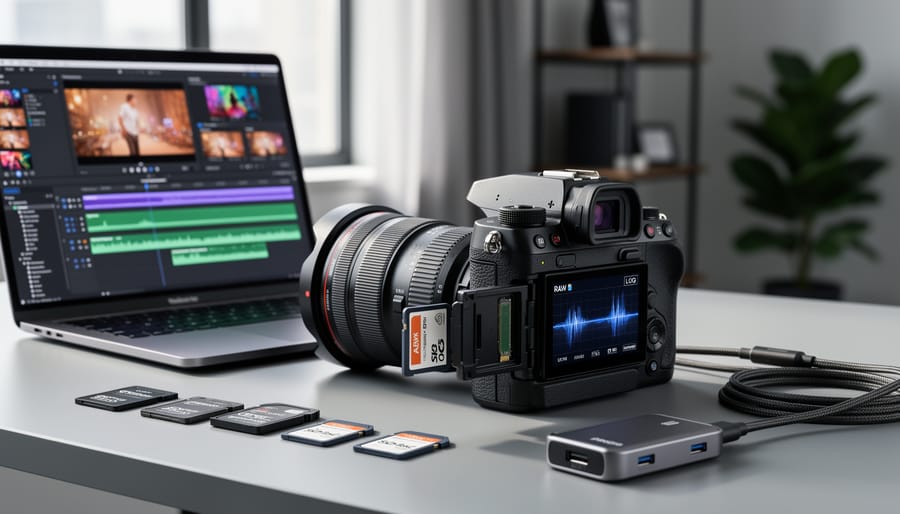
RAW Video: Uncompressed Sensor Data
RAW video captures everything your camera sensor records before any in-camera processing kicks in. Think of it as the digital equivalent of a film negative—it’s the purest form of your image data, containing the full dynamic range and color information your sensor detected. Unlike compressed formats such as H.264 or ProRes that bake in decisions about color space, contrast, and sharpness, RAW gives you maximum flexibility in post-production.
This uncompressed nature is both RAW’s greatest strength and its biggest challenge. A single frame of RAW video can contain tens of megabytes of data, which is why manufacturers often implement compression algorithms like LZW to make file sizes manageable. However, RAW’s extensive data requirements mean your editing system works significantly harder during playback and color grading.
The practical implications are substantial. When you import RAW footage into your editing software, you’re asking it to decode and interpret massive amounts of unprocessed sensor data in real-time. This is why RAW formats demand more powerful hardware and why compatibility issues with compression methods like LZW can completely halt your workflow. Understanding that RAW video isn’t just “high-quality footage” but rather unprocessed sensor data helps explain why it requires specialized handling, transcoding considerations, and why certain codec combinations create the frustrating compatibility problems you might be experiencing right now.
Log Formats: The Middle Ground
Log formats occupy an interesting space between uncompressed RAW and heavily compressed delivery codecs. Think of them as a photographer’s negative translated to the video world—they capture a wide dynamic range in a mathematically compressed form that preserves maximum color grading flexibility.
Unlike standard video that displays images ready for viewing, log gamma curves redistribute tonal information across the available bit depth. They allocate more data to shadows and midtones where our eyes are most sensitive, while compressing highlights. The result looks flat and desaturated straight out of camera, but that’s intentional. This redistribution prevents clipping in bright areas and preserves shadow detail that would otherwise be lost.
Popular examples include Sony’s S-Log, Panasonic’s V-Log, and Canon’s C-Log. Each manufacturer uses slightly different curves, but the principle remains consistent: maximize the sensor’s dynamic range (often 12-14+ stops) within an 8-bit or 10-bit file.
Here’s where LZW compression enters the conversation. Some cameras and recorders offer LZW-compressed log formats to reduce file sizes during capture. While this seems ideal—preserving grading latitude while saving storage space—compatibility issues can emerge when these files hit your editing timeline. Understanding how your specific log format handles compression helps you anticipate potential roadblocks before they derail your workflow.
The LZW Problem: Why Your NLE Won’t Play Nice
The Patent Wars That Changed Everything
LZW compression has a complicated legal history that still affects photographers and video editors today. The algorithm was patented by Unisys in 1985, with additional patents held by IBM. For years, software developers who incorporated LZW into their applications needed to pay licensing fees, which created widespread tension in the tech community.
The controversy peaked in the 1990s when patent holders began enforcing licensing requirements aggressively. This led many developers to avoid LZW entirely, opting instead for alternative compression methods. The popular PNG image format, for example, was created partly as a patent-free alternative to GIF, which used LZW compression.
The patents expired between 2003 and 2006, technically making LZW free to use. However, the damage was done. An entire generation of developers learned to work around LZW, and many modern applications still lack robust support for it. This legacy explains why you might encounter compatibility issues when working with TIFF files compressed using LZW in certain video editing software or RAW processors.
For photographers, this means LZW-compressed files can become workflow bottlenecks. While the format itself remains valid and useful, the patchy software support stemming from this patent history makes uncompressed or ZIP-compressed alternatives more reliable choices for professional work.
Which NLEs Support LZW (And Which Don’t)
If you’re working with LZW-compressed files, understanding which editing platforms support this codec can save you hours of troubleshooting. The compatibility landscape is surprisingly fragmented, and knowing where you stand before you import footage is essential.
Adobe Premiere Pro and After Effects generally handle LZW-compressed TIFFs and certain RAW formats without major issues, particularly in recent versions. However, performance can vary depending on your sequence settings and hardware configuration. If you’re experiencing sluggish playback, converting your LZW files to ProRes or DNxHD proxies often resolves the problem immediately.
DaVinci Resolve has historically been more finicky with LZW compression. While it can read LZW-compressed TIFFs in many cases, users frequently report intermittent import failures or unexpected errors when working with certain camera manufacturers’ implementations of LZW in their RAW formats. The good news is that Resolve handles uncompressed and visually lossless codecs beautifully, making transcoding a viable workaround.
Final Cut Pro X generally supports LZW-compressed TIFFs reliably, though Apple’s preference for their own ProRes ecosystem means you’ll typically get better real-time performance by converting files first. Many FCPX editors build automatic conversion into their ingest workflow using tools like Compressor or third-party automation scripts.
Avid Media Composer remains the most conservative platform regarding codec support. While it can work with LZW files through certain plugins or after transcoding, native support is limited. Professional Avid facilities typically establish strict media preparation protocols that convert everything to DNxHD or DNxHR before edit.
The practical takeaway? If your NLE struggles with LZW files, don’t fight it. Use free tools like FFmpeg or Adobe Media Encoder to batch-convert problematic files to editing-friendly formats before importing. This approach ensures consistent playback and prevents mysterious crashes mid-project.
Real-World Scenarios: When You’ll Encounter LZW Compression
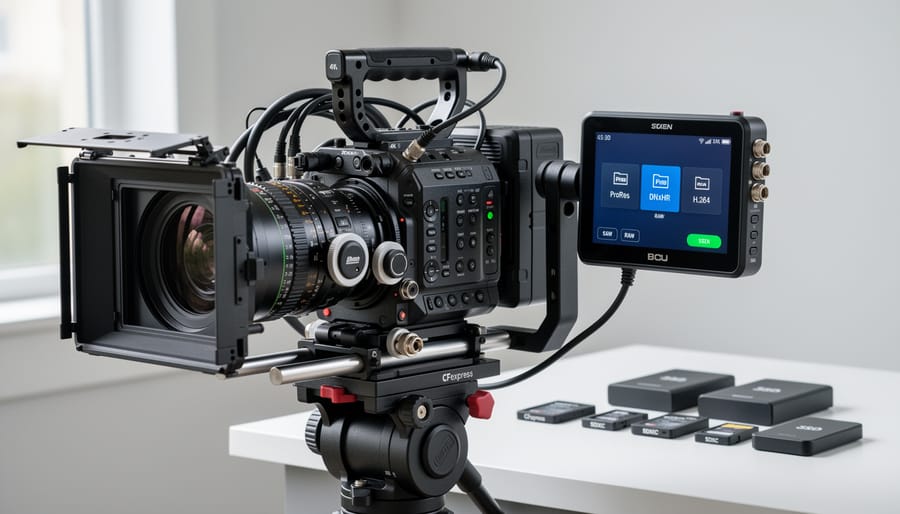
Cinema Cameras and External Recorders
While LZW compression is relatively rare in modern cinema cameras, you might encounter it in specific recording scenarios. Certain external recorders and production workflows from the mid-2000s through early 2010s occasionally utilized LZW compression for image sequences, particularly when working with uncompressed or minimally compressed formats.
Some legacy TIFF sequences captured through professional recording devices like older AJA and Blackmagic Design external recorders could output LZW-compressed files, especially when users selected TIFF as their recording format to maintain maximum image quality. These recorders gave operators compression options to balance file size against storage limitations, and LZW was sometimes chosen as a “safe” lossless option.
Additionally, certain digital cinema workflows involving intermediate file generation might produce LZW-compressed TIFFs as part of the color grading or VFX pipeline. High-end still cameras used on set for reference frames or specialized motion control photography sometimes default to LZW compression when shooting TIFF sequences.
If you’re working with footage from older productions or inherited project files, checking your source material’s compression settings can save considerable troubleshooting time. Most modern cinema cameras and recorders have moved toward ProRes, DNxHD, or other video-optimized codecs that offer better performance in editorial applications.
Archive Formats and Legacy Files
If you’ve ever opened an old project folder and found TIFF sequences that refuse to play nicely with your current software, LZW compression might be the culprit. This compression method was particularly popular in the early 2000s for archiving image sequences and intermediate renders from motion graphics projects. Many photographers and video editors working with legacy footage encounter LZW-compressed TIFFs when revisiting older commercial work or personal archives.
The challenge with these files is that while they’re perfectly preserved, modern applications sometimes struggle with LZW’s outdated compression algorithm. You might experience slow preview generation, import errors, or complete incompatibility with newer editing software. This is especially common with sequences exported from older versions of After Effects, Shake, or early digital intermediate workflows.
The practical solution involves creating conversion workflows before you need them urgently. Consider batch-converting archived LZW TIFF sequences to uncompressed or ZIP-compressed versions when you first discover them, rather than waiting until a client requests revisions. Free tools like ImageMagick or XnConvert can handle bulk conversions efficiently. For project archives, maintain both the original LZW files and converted versions, documenting which compression method works reliably with your current software ecosystem. This dual-archive approach protects your investment in legacy work while ensuring accessibility when opportunities arise.
Practical Solutions: How to Handle LZW Files in Your Workflow
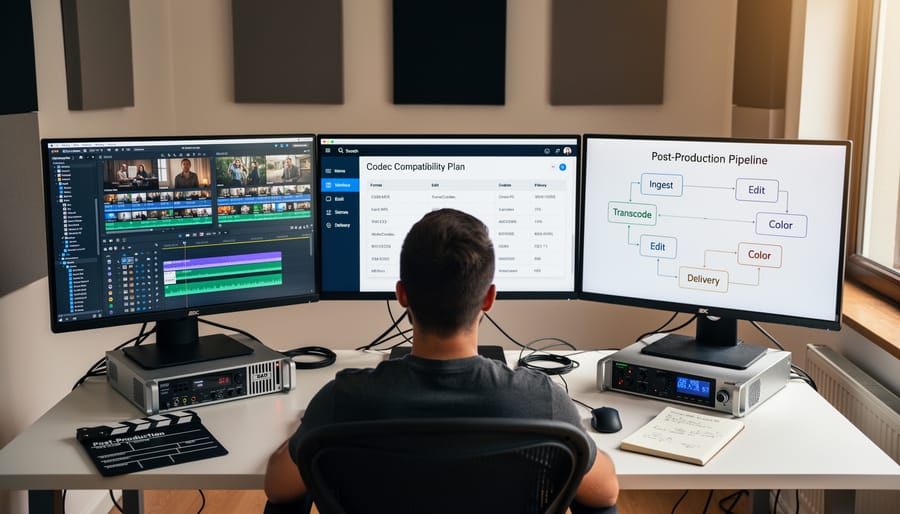
Transcoding Your Footage: Tools and Best Practices
When you’re dealing with LZW-compressed footage that won’t play nice with your editing software, transcoding is often your best friend. The good news? You have several reliable options that won’t compromise your image quality.
FFmpeg stands out as the powerhouse solution for transcoding LZW files. This free, open-source tool handles virtually any format you throw at it. The command line interface might seem intimidating at first, but a simple command like `ffmpeg -i input.mov -c:v prores_ks -profile:v 3 output.mov` will convert your LZW file to ProRes 422, which plays beautifully with most NLEs. The key here is using a mathematically lossless or visually lossless intermediate codec like ProRes or DNxHR rather than lossy formats like H.264.
For those who prefer a graphical interface, Adobe Media Encoder offers excellent results with more intuitive controls. Select your LZW file, choose a ProRes or DNxHD preset under the “QuickTime” format options, and you’re good to go. The software automatically handles color space preservation, which is crucial when working with Log footage.
DaVinci Resolve’s built-in transcoding tools also deserve mention. Simply right-click your clips in the media pool, select “Generate Optimized Media,” and Resolve creates DNxHR proxies that maintain your original quality while improving playback performance.
Here’s a practical tip: always verify your transcoded files before deleting originals. Play through a few clips, check color accuracy against the source, and confirm your metadata transferred correctly. This thirty-second quality check can save hours of headache later.
Better Compression Alternatives for RAW/Log
If you’re frequently wrestling with LZW compression issues, it might be time to consider alternatives that offer better compatibility and performance. Modern codecs have evolved significantly, providing efficient workflows without the headaches.
ProRes RAW and Blackmagic RAW (BRAW) have become industry favorites for good reason. ProRes RAW integrates seamlessly with Apple’s ecosystem and most major editing platforms, while BRAW offers exceptional quality-to-file-size ratios with excellent playback performance even on modest hardware. Both maintain the flexibility of RAW while providing near-universal compatibility with professional NLEs.
For photographers working with image sequences or high-end video work, lossless compression formats like TIFF with ZIP or Adobe’s lossless DNG compression offer viable alternatives. These formats compress file sizes without discarding data, and they’re widely supported across virtually all professional software.
Real-world example: A wedding videographer switched from LZW-compressed Cinema DNG to BRAW and cut their ingest time by 60 percent while gaining smoother timeline playback. The transition required updating their workflow, but the time savings on every project quickly justified the change.
When evaluating alternatives, consider your entire workflow chain, from camera to final delivery. The best codec balances quality, file size, compatibility with your existing tools, and processing speed on your hardware. Sometimes paying slightly more for storage is worth the time saved troubleshooting compatibility issues.
Preventing LZW Issues Before They Start
The best solution to LZW compression issues is avoiding them entirely through proper camera configuration. Before you hit record, dive into your camera or recorder’s output settings and look for compression options. Many devices that default to LZW compression offer alternatives like uncompressed or PackBits compression—both dramatically more compatible with modern editing software. For example, some external recorders let you choose between various codec wrappers when outputting RAW or Log footage. Selecting ProRes or DNxHD variants instead of TIFF sequences eliminates LZW concerns altogether.
When shopping for new equipment, ask pointed questions: “What compression formats does this device support?” and “Are the output files immediately compatible with Adobe Premiere Pro and DaVinci Resolve?” Check manufacturer forums for real-world user experiences—compatibility issues surface quickly in community discussions. Request sample footage before purchasing if possible, then test it in your actual editing environment. This ten-minute investment can save dozens of frustrating hours troubleshooting later. Remember that cutting-edge features mean nothing if your footage sits unusable on a hard drive.
Navigating LZW compression issues doesn’t have to derail your photography workflow. While encountering compatibility problems can be frustrating, especially when you’re eager to dive into editing your latest shoot, the good news is that every LZW-related challenge has a straightforward solution. Whether you choose to convert your files using batch processing tools, adjust your camera’s output settings, or update your software to versions with better codec support, you now have multiple pathways forward.
The key takeaway here is simple: test before you shoot anything critical. Before that important client session or once-in-a-lifetime event, run a quick test with your actual camera settings and editing software. Import a few sample files, apply your typical adjustments, and export a final image. This five-minute investment can save you hours of troubleshooting and potential panic later. Think of it as a pre-flight check for your digital workflow.
As camera manufacturers continue developing new codecs and software developers adapt to support them, compression formats will keep evolving. What works seamlessly today might need adjustment tomorrow when you upgrade your camera body or switch editing applications. Stay curious about these technical aspects of photography, keep your software updated, and remain part of photography communities where professionals share their workflow experiences. Understanding the technical foundation behind your images, including details like compression methods, ultimately gives you more creative control and fewer unexpected obstacles between capture and final delivery.

 By
By