By
By 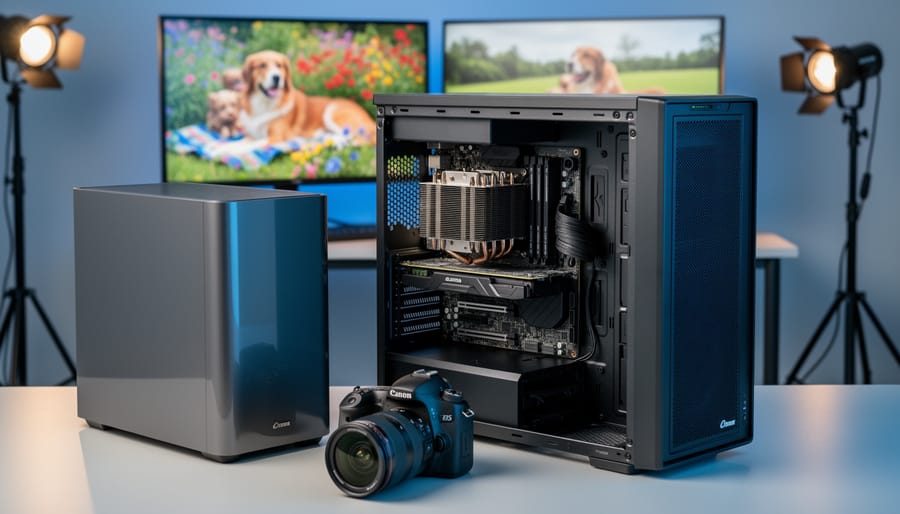
Your Lightroom catalog freezes for 30 seconds when building previews. Photoshop’s content-aware fill takes minutes instead of moments. Export times make you question every life choice that led to this moment. Before you blame your computer and drop thousands on a workstation CPU, understand what actually separates these processors from their mainstream counterparts and whether your editing workflow genuinely needs them.
Workstation CPUs like Intel Xeon and AMD Threadripper PRO aren’t just faster versions of consumer chips. They’re engineered with features that matter only in specific scenarios: support for massive RAM configurations (512GB or more), error-correcting code memory that prevents data corruption during critical renders, additional PCIe lanes for multiple high-speed storage arrays, and validation for professional software certifications. For photographers, these advantages translate to real benefits only when you’re processing hundreds of 100-megapixel files simultaneously, running multiple virtual machines for client workflows, or managing complex panorama stitching that maxes out standard system memory.
The uncomfortable truth? Most photographers, even busy professionals shooting weddings or commercial work, won’t notice meaningful differences between a high-end consumer CPU and a workstation processor in daily editing tasks. A Ryzen 9 or Core i9 with 64GB of RAM handles typical Lightroom catalogs and Photoshop work beautifully at half the cost. This article cuts through marketing claims to show you exactly when workstation CPUs make financial sense, which specific features actually accelerate photo editing, and how to match processor capabilities to your genuine workflow demands rather than aspirational specifications.
What Makes Workstation CPUs Different from Gaming and Consumer Processors
When you’re researching processors for your photography workstation, you’ve probably noticed that workstation CPUs carry significantly higher price tags than their consumer counterparts. But what exactly are you paying for, and does it matter for your editing workflow?
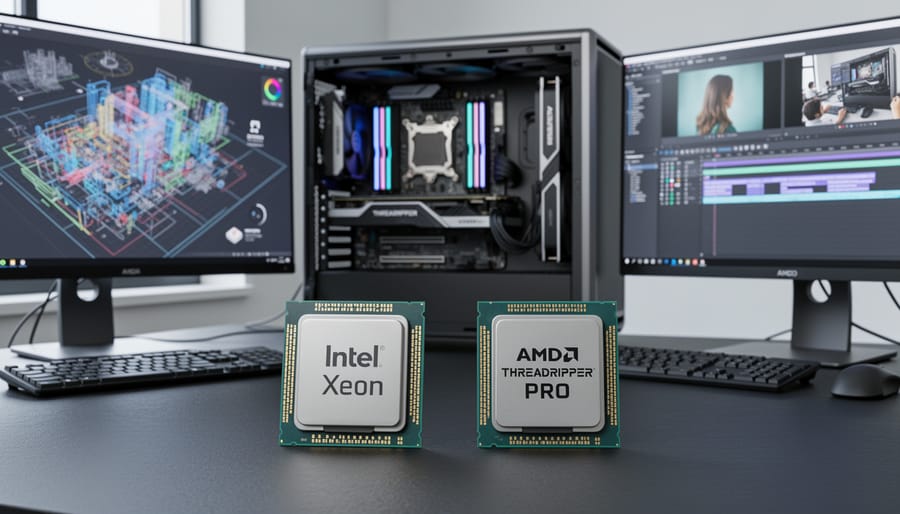
The differences run much deeper than just the name on the box. Workstation processors like Intel Xeon and AMD Threadripper PRO are engineered with fundamentally different priorities than gaming or mainstream CPUs. While a gaming processor optimizes for high clock speeds on a handful of cores to push frame rates in the latest titles, workstation CPUs focus on sustained performance across many cores, robust reliability features, and expanded memory capabilities.
Let’s start with core counts. Consumer processors typically max out at 16 or 24 cores, which sounds like plenty until you’re batch processing 5,000 RAW files from a wedding shoot while simultaneously running automated retouching scripts and exporting web galleries. Workstation CPUs can offer 32, 64, or even more cores, allowing true parallel processing that transforms hours-long tasks into manageable timeframes.
Cache architecture represents another critical distinction. Workstation processors include substantially larger L3 cache pools, sometimes reaching 256MB or more. Think of cache as your processor’s immediate workspace. When you’re applying complex adjustments to high-resolution images in Lightroom or Photoshop, larger cache means the processor can keep more image data and processing instructions readily accessible without constantly fetching information from slower system memory. This translates to smoother scrubbing through adjustment sliders and more responsive editing experiences.
Perhaps the most significant difference for professional photographers is ECC memory support. Error-Correcting Code memory automatically detects and corrects data corruption that can occur during processing. While consumer systems might occasionally produce a corrupted pixel or incorrectly processed file that you won’t notice until a client receives their gallery, ECC memory prevents these silent errors. For professionals whose reputation depends on delivering flawless work, this reliability feature provides essential peace of mind.
Workstation CPUs also undergo more rigorous validation and testing, particularly for professional software certification. Adobe, Capture One, and other photography applications perform extensive compatibility testing with workstation platforms, ensuring stable performance under demanding conditions. These processors are built for 24/7 operation with thermal designs supporting sustained loads, not the burst performance patterns typical in gaming.
How Photo Editing Software Actually Uses Your CPU
Import and Preview Generation
When you import photos into Lightroom or Capture One, your CPU immediately gets to work. This initial import phase involves reading RAW files, generating thumbnail previews, and creating smart previews—tasks that are surprisingly CPU-intensive rather than GPU-dependent.
Think about importing 500 images from a wedding shoot. Your processor needs to decode each proprietary RAW file format (whether that’s Canon’s CR3, Nikon’s NEF, or Sony’s ARW), extract embedded JPEGs, and generate multiple preview sizes. A workstation CPU with higher core counts handles these parallel tasks significantly faster. Where a mainstream quad-core might take 15-20 minutes to generate 1:1 previews for that wedding set, an eight-core or twelve-core workstation processor can cut that time in half.
Smart preview generation is particularly demanding. These compressed DNG files allow offline editing but require substantial processing power to create. If you’re building smart previews for an entire catalog of 10,000 images, the difference between a standard desktop CPU and a workstation chip becomes painfully obvious. However, this advantage only matters if you’re not facing storage performance bottlenecks that slow down the read/write process itself—even the fastest CPU can’t compensate for sluggish drives.
Adjustments and Real-Time Editing
When you’re sliding exposure, dialing in white balance, or layering multiple adjustment brushes in Lightroom or Capture One, your CPU is performing thousands of calculations to show you instant visual feedback. This is where single-core performance becomes surprisingly important. Unlike batch exporting, which can distribute work across many cores, real-time adjustments typically rely heavily on one or two cores working at maximum speed.
Think of it this way: when you drag that clarity slider, your editing software needs to recalculate the preview immediately so you can see the effect. A CPU with higher clock speeds (measured in GHz) delivers those updates faster, making your editing experience feel snappier and more responsive. This is particularly noticeable when working with complex local adjustments or intensive filters like sharpening and noise reduction.
For example, applying a graduated filter with multiple parameter adjustments might render almost instantly on a CPU running at 5.0 GHz, while a lower-clocked processor might lag slightly behind your cursor movements. That fraction-of-a-second delay might seem minor, but when you’re making hundreds of adjustments during a session, it accumulates into real frustration. Many photographers find that boosting single-core speed improves their creative flow more noticeably than adding extra cores, especially during the critical decision-making moments of the editing process.
Export and Batch Processing
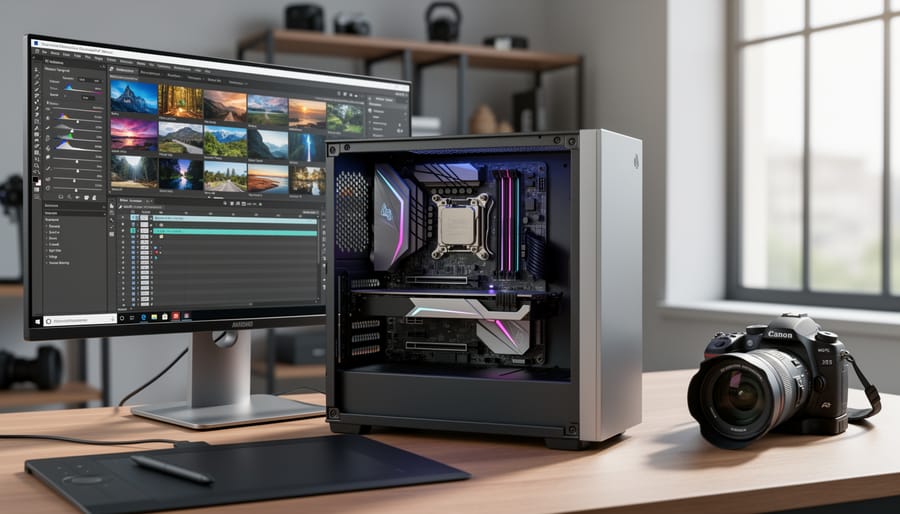
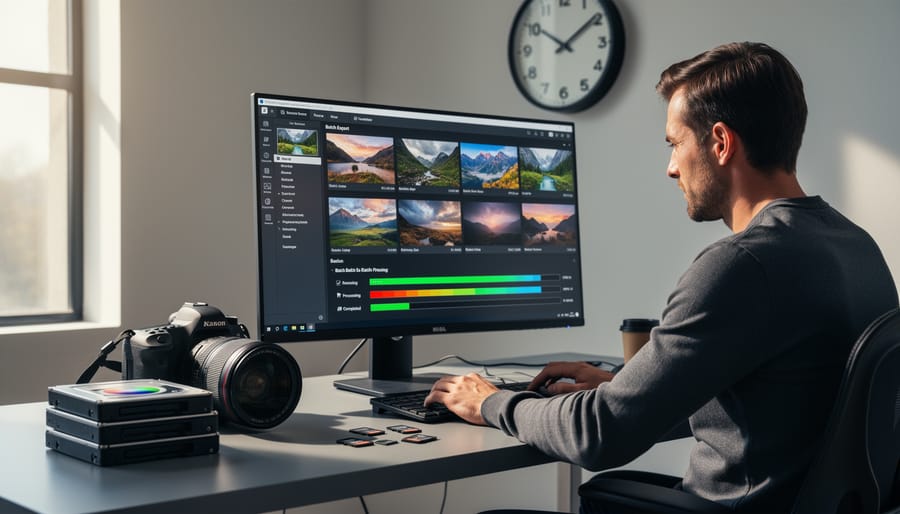
If you regularly process hundreds of images from a shoot, this is where workstation CPUs truly shine. A 16-core processor can export a batch of 500 RAW files to JPEG in roughly 12 minutes, while a quad-core CPU might take 45 minutes or longer for the same task. That’s time you could spend shooting, retouching, or simply enjoying your evening instead of watching progress bars.
The benefits multiply with more complex operations. Converting an entire wedding shoot to black-and-white with grain adjustments, exporting watermarked social media versions, and generating full-resolution prints simultaneously becomes feasible. Where a mainstream CPU forces you to process tasks sequentially, a high core count workstation processor handles these operations in parallel. One photographer I know reduced her post-wedding workflow from two full days to just six hours after upgrading to a 24-core system. The real advantage isn’t just speed—it’s the freedom to keep working in Lightroom while exports run seamlessly in the background.
Core Count vs. Clock Speed: Finding Your Sweet Spot
When you’re shopping for a workstation CPU, you’ll quickly notice two competing specifications: core count and clock speed. Understanding which matters more for your specific photography work can save you thousands of dollars and countless hours of frustration.
Think of it this way: cores are like having multiple assistants working simultaneously, while clock speed is how fast each assistant works individually. For photo editing, the balance between these two depends entirely on what you’re actually doing with your images.
Portrait and studio photographers who work with moderate file sizes (20-50 megapixels) and apply creative edits in Lightroom or Capture One will benefit more from higher clock speeds. A CPU running at 4.5-5.0 GHz with 8-12 cores will feel snappier than a 24-core processor running at 3.2 GHz when you’re adjusting sliders, applying presets, or working in the Develop module. That’s because many editing operations happen sequentially, one after another, rather than splitting across multiple cores.
Landscape photographers working with 100+ megapixel files or extensive focus-stacking projects need a different approach. Here, a 16-24 core processor really shines during the heavy lifting moments: merging panoramas, stacking multiple exposures, or batch processing hundreds of images. Yes, the individual core speed might be lower, but when Photoshop can distribute a complex panorama merge across 20 cores simultaneously, the total time savings are dramatic.
Sports and event photographers face unique demands. If you’re culling through 3,000 images from a wedding or sporting event, you need both: enough cores to generate previews quickly (8-12 minimum) and sufficient single-core speed to keep the interface responsive while you’re making rapid selections.
High-volume commercial photographers running automated batch workflows should prioritize core count above all else. When you’re processing 500 product photos with identical adjustments, a 24-core CPU can nearly finish the job while you’re still waiting for an 8-core system to get halfway through, regardless of clock speed differences.
A practical sweet spot for most photographers is 12-16 cores with boost clocks reaching 4.5 GHz or higher. This configuration handles both single-threaded responsiveness and multi-threaded processing without forcing you to compromise on either front.
Workstation CPU Options for Different Photography Budgets
Entry-Level Workstation Performance (Under $500)
Breaking into workstation-class processing doesn’t require breaking the bank. If you’re working with batch processing RAW files in Lightroom or handling moderate layers in Photoshop, entry-level workstation chips deliver noticeable improvements over their consumer counterparts without the premium price tag.
The AMD Ryzen 9 5900X remains a solid choice in this category, typically hovering around $400. With 12 cores and 24 threads, you’ll see tangible benefits when applying presets to hundreds of images or building panoramas. Real-world testing shows export times dropping by 30-40% compared to mid-range consumer chips. Another strong contender is Intel’s Core i7-13700, which brings hybrid architecture to the table around $450, excelling at both single-threaded tasks like interface responsiveness and multi-threaded operations like applying sharpening across entire catalogs.
What sets these apart from consumer alternatives? Better memory support, more PCIe lanes for multiple storage drives, and crucially, sustained performance under heavy workloads. Where a gaming chip might throttle during a 500-image export, these maintain consistent clock speeds. You’re not getting every workstation feature here, but for photographers moving beyond casual editing, they represent the sweet spot where professional capability meets accessible pricing.
Mid-Range Professional Setup ($500-$1500)
This price range represents the sweet spot where you’ll find processors that genuinely transform your editing experience without requiring a second mortgage. We’re talking about CPUs like the AMD Ryzen 9 5900X or Intel Core i7-13700K, which typically offer 12-16 cores and excel at the multi-threaded tasks photography demands.
Here’s what makes these processors special: they’ll chew through batch exports of 100+ RAW files while you grab coffee instead of watching progress bars for an hour. Adobe Lightroom Classic’s AI-powered masking and noise reduction tools become genuinely usable rather than frustrating. When you’re working with panoramic stitches or focus stacking, these CPUs keep things moving smoothly.
The real-world difference is noticeable. A photographer I know upgraded from a budget quad-core to a Ryzen 9 5950X and cut their catalog backup time from 45 minutes to under 15. That’s time saved every single week.
For most professional photographers shooting weddings, portraits, or commercial work, this tier provides everything needed without overspending on extreme performance you won’t utilize. Pair one of these processors with 32GB of RAM and fast storage as part of your complete workstation setup, and you’ve built something that’ll serve you reliably for years.
High-End Production Workstations ($1500+)
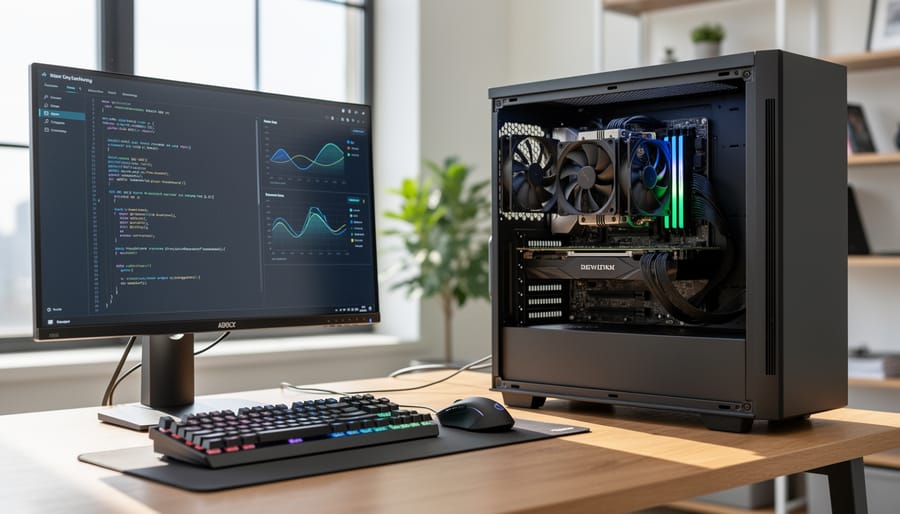
When you’re operating a commercial studio or regularly handling 100+ megapixel medium format files, computational power becomes non-negotiable. At this tier, we’re looking at processors like the AMD Threadripper PRO 5995WX or Intel Xeon W-3400 series—CPUs specifically engineered for relentless professional workloads.
These chips typically offer 24 to 64 cores, massive memory bandwidth, and support for ECC RAM to prevent data corruption during mission-critical projects. If you’re compositing dozens of layers in Photoshop, batch processing thousands of RAW files overnight, or blending photography with video production, this level of processing eliminates waiting. A 32-core Threadripper, for example, can export a complex Lightroom catalog while simultaneously rendering 4K video sequences without breaking stride.
The real advantage here isn’t just speed—it’s reliability and scalability. These platforms support 256GB to 2TB of RAM and multiple high-speed storage arrays, essential when archiving large catalogs. They also provide PCIe lanes for professional capture cards and GPU considerations that enhance hybrid photography-video workflows. Yes, it’s expensive, but when time literally equals money in your business, this investment pays dividends through increased throughput and reduced downtime.
Memory Considerations for Workstation CPUs
Choosing the right processor is only half the equation when building a workstation for photo editing. The memory you pair with your CPU can dramatically impact how smoothly your editing sessions flow, particularly when you’re juggling large RAW files or working with extensive layered compositions.
For most photography workflows, 32GB of RAM represents the sweet spot. This capacity handles batch processing of RAW files, multiple Photoshop documents with dozens of layers, and background tasks without forcing you to wait. If you regularly work with panoramic stitches or focus stacks that exceed 100 megapixels, or if you’re diving into video editing alongside your photography work, 64GB provides comfortable headroom that prevents those frustrating slowdowns when your system runs out of memory.
Memory speed matters more than many photographers realize, though it’s not the first specification to obsess over. Modern workstation CPUs support DDR4 or DDR5 memory, with speeds ranging from 3200MHz to 6400MHz and beyond. For photo editing specifically, you’ll notice meaningful improvements moving from baseline speeds to faster modules, particularly during operations like applying complex filters or generating previews. The difference between DDR4-3200 and DDR4-3600, for instance, can shave seconds off each action in a catalog of thousands of images. Those seconds accumulate quickly during a typical editing session.
Here’s where workstation platforms truly differentiate themselves: memory channels. Consumer CPUs typically support dual-channel memory configurations, while workstation processors often provide quad-channel or even eight-channel support. Think of memory channels as highways between your RAM and CPU. More channels mean more simultaneous data transfer, which translates to faster performance when Lightroom generates smart previews for an entire shoot or when Photoshop applies batch actions.
ECC memory, or Error-Correcting Code memory, deserves consideration if your photography work is mission-critical. Standard RAM occasionally experiences tiny data errors that can corrupt files or cause crashes. ECC memory automatically detects and corrects these errors in real-time. For professional photographers whose income depends on delivering flawless results to clients, this reliability is worth the modest cost premium. While you might never notice the errors ECC prevents, that’s precisely the point—it works silently in the background, ensuring your late-night editing sessions don’t result in corrupted master files.
Real-World Performance: What You’ll Actually Notice
Let’s talk about what actually changes when you upgrade to a workstation CPU. We’re not discussing benchmark scores here—we’re looking at the real time you’ll save during an actual workday.
Consider a common scenario: you’ve just returned from a wedding shoot with 2,000 RAW files. With a typical consumer i7 processor, importing those files into Lightroom Classic with 1:1 previews might take 45-60 minutes. Upgrade to something like a Threadripper or Xeon W with 24 cores, and that same task drops to 15-20 minutes. That’s not just convenient—it means you can start culling images the same evening instead of letting your computer churn overnight.
Export times show even more dramatic improvements. A batch of 500 edited wedding photos exported at full resolution with sharpening and watermarks applied might take 35 minutes on a mid-range CPU. A workstation processor with proper core count can cut that to 10-12 minutes. When you’re juggling multiple client deadlines, those savings compound quickly.
Where you’ll really feel the difference is during active editing. Working with 100-megapixel medium format files or creating complex panoramas with 15+ images becomes genuinely responsive rather than an exercise in patience. Adjustment sliders respond immediately, even with multiple graduated filters and local adjustments applied. Moving between images in the grid view feels instantaneous rather than stuttering through thumbnails.
Photoshop operations transform similarly. Content-Aware Fill that previously took 20-30 seconds completes in under 10. Complex selections with Select Subject happen almost immediately. When you’re stacking focus for product photography with 50+ images, the time difference between 2 hours and 30 minutes is workflow-changing.
The quality of your work matters too—faster processing means you can view results on your calibrated monitor immediately, making creative decisions while your vision is fresh rather than waiting for previews to render. You maintain creative momentum instead of breaking flow waiting for your computer to catch up.
When a Workstation CPU Isn’t Worth It
Let’s be honest: workstation CPUs aren’t for everyone, and that’s perfectly okay. If you’re editing family photos on weekends or processing a dozen images from your occasional portrait session, a modern mainstream processor will handle those tasks beautifully. The truth is, workstation-class CPUs shine brightest under sustained, heavy workloads, and many photographers simply don’t encounter those conditions regularly enough to justify the premium.
Consider your actual workflow rather than your aspirational one. If you’re working with JPEG files, applying basic adjustments in Lightroom, and exporting fewer than 100 images per session, even a mid-range consumer CPU like the Intel Core i5 or AMD Ryzen 5 will feel snappy and responsive. You won’t notice meaningful performance differences that justify spending double or triple the cost.
Budget constraints are another valid consideration. If upgrading to a workstation CPU means sacrificing RAM capacity, monitor quality, or proper color calibration tools, your money is better spent elsewhere. A photographer working with 16GB of RAM and a budget CPU will often achieve better results than someone with 8GB and an expensive workstation processor.
The sweet spot matters too. Many enthusiast photographers find that upper-tier mainstream CPUs offer 80 percent of workstation performance at 50 percent of the cost. Unless you’re regularly processing hundreds of raw files, running complex panorama stitching, or operating a professional studio with daily deadlines, that performance gap rarely translates into real-world frustration. Save your investment for glass, lighting, or education instead.
Choosing the right workstation CPU ultimately comes down to understanding your actual workflow, not just chasing impressive specifications. Before you invest in a high-core-count processor, take an honest look at where your current system struggles. Are you waiting minutes for batch exports? Does your machine lag when applying complex adjustments to 50-megapixel files? Or are your frustrations more about organization and storage speed?
Many photographers discover that their bottleneck isn’t the CPU at all. If you’re primarily editing single images in Lightroom with occasional Photoshop work, a mid-range processor paired with adequate RAM and fast storage will serve you beautifully. Save the workstation-class investment for when you’re genuinely processing hundreds of images daily, working with panoramic stitching, or creating complex composites that demand sustained multi-threaded performance.
The real value in workstation CPUs lies in their reliability, ECC memory support, and sustained performance under heavy loads rather than peak benchmark scores. Match your purchase to your actual pain points. Start by monitoring your current CPU usage during typical editing sessions. If you’re consistently maxing out your cores during the tasks that matter most to you, then upgrading makes sense. Otherwise, you might find better performance gains elsewhere in your system, leaving more budget for lenses or lighting equipment that directly impacts your creative output.




 By
By