By
By 
Embed EXIF data directly into your images before uploading to Google Photos or Drive—this includes camera settings, GPS coordinates, copyright information, and keywords that Google’s algorithms automatically index and make searchable. Your metadata travels with your photos across Google’s ecosystem, enabling powerful search capabilities like finding all images shot at f/2.8 or locating photos by geographic area without manual tagging.
Leverage Google’s Vision AI to automatically generate descriptive labels and detect objects, faces, and landmarks that supplement your manually entered metadata. This dual-layer approach combines your professional insight with machine learning precision, creating a comprehensive cataloging system that far exceeds traditional keyword-only methods. For instance, Google can identify “golden hour landscape” even if you only tagged “sunset,” expanding discoverability for potential clients browsing your portfolio.
Structure your metadata workflow by using Adobe Lightroom or Capture One to standardize EXIF and IPTC fields before syncing to Google services. Consistency in copyright notices, creator credits, and licensing information protects your work legally while ensuring Google Search properly attributes your images when they appear in results. This professional approach matters increasingly as AI-generated images flood search engines—authentic metadata proves your work’s provenance and authenticity.
Understand that Google strips some metadata from publicly shared images for privacy protection, particularly GPS coordinates and camera serial numbers. Combat this by watermarking strategically and maintaining original files with complete metadata in private Google Drive folders. This preserves your master archive’s integrity while allowing controlled public sharing, giving you flexibility in how much technical information accompanies different versions of your work across platforms.
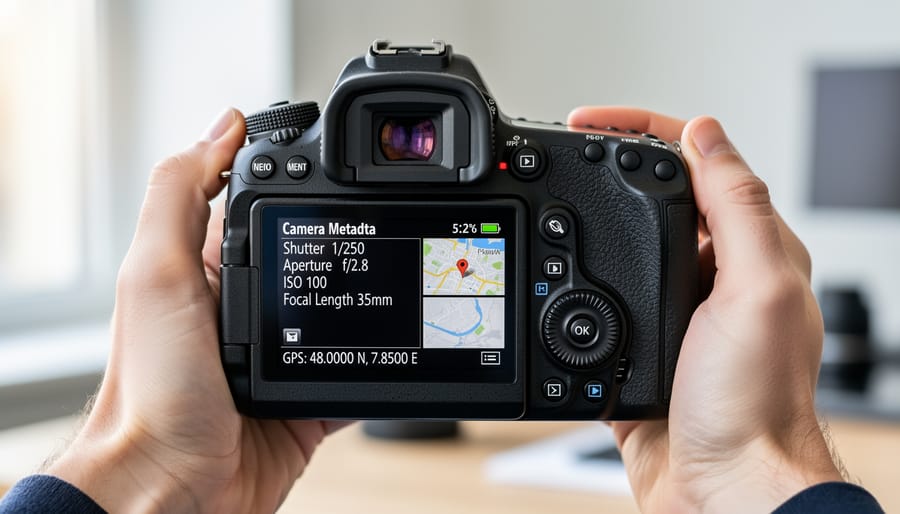
What Google Image Metadata Really Means
The Three Types of Metadata Google Cares About
When you upload images to Google Photos or share them online, Google examines three distinct types of metadata embedded in your files. Understanding these categories helps you optimize what information reaches Google’s algorithms and how your images appear in search results.
EXIF data, short for Exchangeable Image File Format, contains the technical information your camera automatically records with each shot. This includes your camera model, lens focal length, aperture, shutter speed, ISO settings, and the date and time you captured the image. For example, when you photograph a sunset at f/8 with a 1/250 second shutter speed, that information gets embedded in the file. Google uses EXIF data primarily to understand image quality indicators and can even extract location coordinates if your camera or smartphone has GPS enabled. While Google doesn’t directly rank images based on whether you shot at f/2.8 or f/16, this data helps their systems understand context about lighting conditions and camera capabilities.
IPTC metadata, developed by the International Press Telecommunications Council, focuses on descriptive and administrative information. This is where you manually add captions, headlines, keywords, copyright notices, and photographer credits. Think of IPTC as your opportunity to tell Google what your image actually shows. If you photograph a golden retriever playing in a park, your IPTC caption might read “Golden retriever catching frisbee at Riverside Park,” while your keywords could include “dog,” “outdoor recreation,” and “pet photography.” This human-authored information carries significant weight with Google because it provides context that algorithms alone might miss.
XMP, or Extensible Metadata Platform, is Adobe’s standardized format that acts as a wrapper for both EXIF and IPTC data while allowing additional custom fields. Modern editing software like Lightroom writes adjustments and ratings as XMP data, creating a comprehensive record of both capture and post-processing information. Google recognizes XMP formatting, making it particularly valuable for photographers who edit extensively before uploading their work.
How Google Photos Reads Your Image Data
When you upload a photo to Google Photos, the service creates a copy and processes it through multiple systems. Here’s what actually happens to your metadata during this journey.
Google Photos preserves most standard EXIF data, including camera settings like ISO, aperture, shutter speed, and focal length. Your capture date and time remain intact, which is crucial since Google organizes your library chronologically. GPS coordinates are also retained, powering the service’s location-based features and map views.
However, some information gets modified or stripped. Google may compress your images unless you select the original quality upload option, which can alter certain technical fields. Custom metadata fields you’ve added through editing software might not survive the upload, particularly specialized tags or proprietary information from niche applications.
Interestingly, Google Photos reads your metadata and then uses it to enhance its AI-powered features. Your camera model helps Google apply appropriate processing algorithms, while location data feeds into the Places feature. The service even analyzes timestamps alongside image content to create automatic albums and memories.
One important consideration: If you edit photos within Google Photos itself, the app preserves your originals but creates new versions with updated metadata reflecting the changes. This means your editing history becomes part of the metadata story, though you can always revert to the original file with its untouched information.
Where AI-Powered Metadata Management Outperforms Manual Tagging

Automatic Object and Scene Recognition
Google’s AI-powered image recognition has revolutionized how we think about metadata. Instead of manually typing keywords for every photo, Google’s machine learning algorithms can now scan your images and automatically identify what’s actually in them—from obvious subjects like “golden retriever” or “sunset” to more nuanced details like “beach volleyball” or “autumn foliage.”
Here’s how it works in practice. When you upload photos to Google Photos, the platform’s computer vision technology analyzes visual elements within each frame. It recognizes faces, objects, landmarks, activities, and even artistic styles. For example, upload a photo from your Paris vacation, and Google might automatically tag it with “Eiffel Tower,” “architecture,” and “night photography” without you lifting a finger.
This technology extends beyond simple object detection. Google’s AI can understand context and relationships between elements. A photo of someone holding a surfboard near water gets tagged differently than the same person holding that surfboard in a parking lot. The system recognizes scenes, atmospheric conditions, and even color palettes to build comprehensive metadata profiles.
For photographers managing large collections, this automated approach to AI photo organization saves countless hours. However, these AI-generated tags work best when combined with your manual EXIF data and custom keywords. Think of automatic recognition as your assistant—it handles the heavy lifting while you add the creative nuances and specific details that matter most to your workflow and searchability needs.
Facial Recognition and People Tagging
Google Photos has transformed how we organize images of people through its sophisticated facial recognition technology. When you upload photos to Google’s ecosystem, artificial intelligence analyzes facial features, creating unique identifiers for individuals appearing throughout your collection. This happens automatically in the background, eliminating the tedious manual tagging process many photographers remember from earlier photo management systems.
The technology works by detecting faces in your images and grouping similar ones together. You simply confirm or correct the suggested identifications, and Google learns from your input. Once you’ve named someone, the system can identify them across thousands of photos, even accounting for aging, different hairstyles, or varying image quality.
From a metadata perspective, this facial recognition data populates IPTC fields related to people in your images. When you download photos from Google Photos, depending on your export settings, these people tags can be embedded into the file’s metadata structure. This becomes particularly valuable for professional photographers managing client galleries or anyone maintaining extensive family archives.
The practical benefit extends beyond simple organization. Imagine searching for every photo of a specific family member across ten years of vacation snapshots. What once required hours of manual sorting now happens instantly. However, photographers should note that facial recognition accuracy varies with image quality, lighting conditions, and whether subjects are facing the camera directly.
Smart Duplicate Detection and Version Control
Google’s approach to duplicate detection relies heavily on analyzing metadata patterns alongside visual content. When you upload images to Google Photos, the system examines EXIF data like timestamps, camera settings, and GPS coordinates to identify potential duplicates. For instance, if you’ve taken a burst of nearly identical sunset shots, Google compares the millisecond-level timestamps and detects the sequence.
But here’s where it gets interesting: AI photo managers now combine metadata analysis with sophisticated image recognition. They can identify when you’ve edited the same RAW file multiple times, creating different versions with varying crops, color grades, or exposure adjustments. The system recognizes these as related images rather than completely separate photos.
This dual approach proves especially valuable when you’ve exported the same image at different resolutions or aspect ratios. While the visual content remains similar, the metadata reveals distinct processing histories. Google’s algorithms track these relationships, helping you maintain organized libraries without manually tagging every version. The result is smarter storage management and easier retrieval of specific edits when you need them.
Integrating Google Services With Your Photography Workflow
Google Photos vs. Dedicated Photography Tools
Google Photos deserves credit for making sophisticated metadata management accessible to everyone, but how does it stack up against dedicated professional tools? The honest answer depends entirely on what you need from your AI-powered photography workflow.
Google Photos excels at automated tagging and facial recognition without requiring any manual input. Upload your images, and within minutes you can search for “sunset,” “dog,” or “John” with impressive accuracy. For casual photographers or those managing family photos, this zero-effort approach is genuinely revolutionary. The interface is intuitive, storage is affordable, and the AI keeps improving.
Professional tools like Lightroom Classic, Capture One, and Photo Mechanic take a fundamentally different approach. They prioritize photographer control and industry-standard metadata formats. In Lightroom, you can create hierarchical keyword structures, batch-apply custom metadata templates, and ensure your information embeds directly into files using IPTC and EXIF standards. Photo Mechanic remains the fastest tool for adding metadata during ingestion, crucial for photojournalists working under deadline pressure.
The tradeoff becomes clear when considering file ownership and portability. Google Photos keeps much of its AI-generated metadata in the cloud, not embedded in your files. Export an image, and those clever tags often disappear. Professional tools write metadata directly into your files or sidecar files, ensuring your organizational work travels with your images regardless of platform changes.
For working photographers delivering images to clients or agencies, professional tools remain essential. But for personal archives or supplementary backup? Google Photos offers remarkable capabilities at minimal cost and effort. Many photographers find value in using both systems strategically.

Preserving Metadata When Moving Between Platforms
Moving your images between Google Photos, Lightroom, Capture One, or other platforms doesn’t have to mean losing all that valuable metadata you’ve carefully curated. The key is understanding how different platforms handle this information and taking the right steps to protect it.
When exporting from Google Photos, always choose the highest quality download option available. Google typically embeds basic EXIF data like camera settings and date information into your files, but custom tags and descriptions may need special attention. Use Google Takeout for bulk exports, which packages your photos with as much metadata as possible. However, be aware that some album organization and face tag data might not transfer perfectly to other systems.
Before importing into professional software like Lightroom or Capture One, consider using a dedicated metadata management tool as a bridge. Applications like ExifTool or Photo Mechanic can verify that your metadata survived the journey intact. These tools also let you batch-edit any information that didn’t transfer correctly.
Here’s a practical workflow: First, export a test batch of 10-20 images from Google Photos. Import them into your destination software and carefully check if titles, descriptions, keywords, and location data all appear correctly. This small trial run can save you from discovering problems after moving thousands of files.
When working with Google’s AI capabilities for auto-tagging, remember that these tags often live within Google’s ecosystem. Export them as IPTC keywords before moving platforms.
For the reverse journey, importing from professional software into Google Photos, sidecar XMP files won’t transfer. Instead, write all metadata directly into the image files themselves before uploading. This ensures your carefully crafted keywords and descriptions make the transition successfully.

Privacy Considerations With Automated Metadata
What Metadata Google Can Access (And What It Does With It)
When you upload images to Google Photos or share them through Google services, you might wonder what information Google actually sees and how it’s used. Let’s demystify this process so you can make informed decisions about your privacy.
Google can access several types of metadata embedded in your images. This includes EXIF data like camera settings, shooting date and time, and potentially GPS coordinates if your camera or phone tagged the location. Google uses this information primarily to enhance your experience by organizing photos chronologically, grouping images by location, and even identifying which camera or lens you used for specific shots.
Here’s the important part: Google’s stated policy indicates they use metadata to improve search functionality and provide features like automatic album creation and photo suggestions. However, this data also helps train their image recognition algorithms and improve services across their platform.
The good news is you have control. Before uploading images to any Google service, consider using metadata editing software to remove sensitive information like GPS coordinates or personal notes. Most photo editing applications allow you to strip location data while keeping useful information like camera settings intact.
For professional photographers, this becomes particularly important when sharing work samples or portfolios through Google Drive or similar services. You want to maintain copyright information and creator credits while removing any data that could compromise client privacy or reveal your exact shooting locations.
Think of it as selective sharing: keep what helps organize and protect your work, remove what doesn’t serve your interests.
Stripping Sensitive Data Before Sharing
Before sharing your images online, it’s crucial to strip away potentially sensitive metadata that could compromise your privacy or security. Your photos contain more information than you might realize—GPS coordinates revealing where you live or work, camera serial numbers that could be tracked, and even timestamps showing your daily routines.
The simplest approach is using dedicated metadata removal tools. On Windows, right-click any image, select Properties, navigate to the Details tab, and click “Remove Properties and Personal Information.” Mac users can leverage Preview by opening Tools menu, selecting Show Inspector, and manually deleting sensitive fields. For batch processing multiple images, free tools like ExifTool or ImageOptim work efficiently across platforms.
Many social media platforms automatically strip some metadata upon upload, but don’t rely on this entirely. Facebook and Instagram remove most EXIF data, while Twitter preserves more information than you’d expect. If you’re sharing work samples with clients or posting to photography forums, consider creating a dedicated export preset in Lightroom or Photoshop that removes all metadata except copyright information and essential camera settings.
Remember, once an image is published with metadata intact, that information becomes permanently accessible. Making metadata removal part of your standard export workflow protects both your privacy and professional interests without sacrificing the ability to showcase your technical skills.
Building Your AI-Powered Metadata Strategy
Essential Metadata Fields Every Photographer Should Use
Not all metadata fields carry equal weight when it comes to organizing your photo library and improving discoverability on Google Image Search. Let’s focus on the fields that deliver the most value for your time investment.
Start with your title or caption field. This is what Google displays alongside your image in search results, so make it descriptive and specific. Instead of “DSC_1234.jpg,” try “Golden Gate Bridge Sunset Reflection San Francisco.” This simple change dramatically improves searchability for location-based and subject-specific queries.
Keywords or tags come next. Think like someone searching for your image. If you photographed a coffee shop scene, relevant tags might include “coffee,” “cafe interior,” “morning light,” “latte art,” and the specific city. Google’s algorithms parse these tags to understand image content, so aim for 10-15 relevant, specific keywords rather than dozens of generic ones.
Copyright information protects your work and establishes ownership. Fill in the copyright field with your name and year, like “© 2024 Jane Smith.” This metadata often survives when images are shared or downloaded, maintaining your attribution even outside your website.
The description field allows for longer-form context. Use this space to tell the story behind the image or provide technical details that might interest viewers. For example: “Captured during blue hour using a 3-second exposure to smooth the water while maintaining sharpness in the bridge structure.”
Finally, geolocation data (GPS coordinates) helps with local searches. When someone searches “Yosemite wedding photographer,” properly geotagged images from that location have better chances of appearing in results. Most cameras embed this automatically if GPS is enabled, but you can also add it during post-processing.
Choosing the Right AI Tools for Your Needs
Navigating the world of AI photography software for metadata management can feel overwhelming, but understanding your options makes the choice much simpler. Leading solutions include Google Photos (which we’ve discussed), Adobe Lightroom Classic with its AI-powered auto-tagging, and specialized tools like Excire Foto and ON1 Photo RAW.
Cloud-based solutions like Google Photos excel when you need accessibility across devices and automatic backup. They’re ideal if you shoot casually, want instant mobile access, and don’t mind storing images on remote servers. The tradeoff is less control over the AI models and potential privacy concerns with your photo library living in the cloud.
Local tools like Excire Foto or Lightroom Classic shine when you’re managing large professional collections, need complete privacy control, or work with sensitive client images. These solutions process everything on your computer, giving you ownership of both images and metadata without internet dependency. However, they typically require more powerful hardware and upfront investment.
Budget considerations matter too. Google Photos offers generous free storage with basic AI features, making it perfect for hobbyists. Professional solutions range from $99 to $299 for perpetual licenses, while subscription models like Adobe’s Photography Plan run around $10 monthly. Consider your volume of images, required features, and whether you prefer one-time purchases versus ongoing subscriptions. For most photographers starting with AI metadata tools, beginning with free options like Google Photos while testing paid trials helps identify what actually matches your workflow before committing financially.
Understanding how Google handles image metadata is just the beginning of mastering modern photography management. While Google Photos offers convenient cloud storage and basic organizational features, the real power emerges when you combine it strategically with AI-powered tools that can analyze, enrich, and leverage metadata at scale. The landscape has evolved beyond simple keyword tagging—today’s photographers can harness machine learning to automate tedious workflows while maintaining creative control over their archives.
The key takeaway is that metadata isn’t just technical background information; it’s the foundation that makes your images discoverable, protectable, and monetizable. Whether Google’s ecosystem serves as your primary platform or works alongside specialized software depends on your specific needs, but understanding the limitations and strengths of each approach empowers you to make informed decisions.
Ready to optimize your workflow today? Start by auditing your current metadata practices. Export a sample of images from your collection and examine what information is actually embedded versus what relies on proprietary cloud databases. Then, establish a consistent naming convention and keyword strategy before uploading new work. Finally, test how different platforms—Google Photos, Adobe Lightroom, or standalone AI tools—handle your metadata during import and export. This hands-on experimentation will quickly reveal which combination of tools best serves your photography goals while future-proofing your valuable image library.





 By
By