By
By 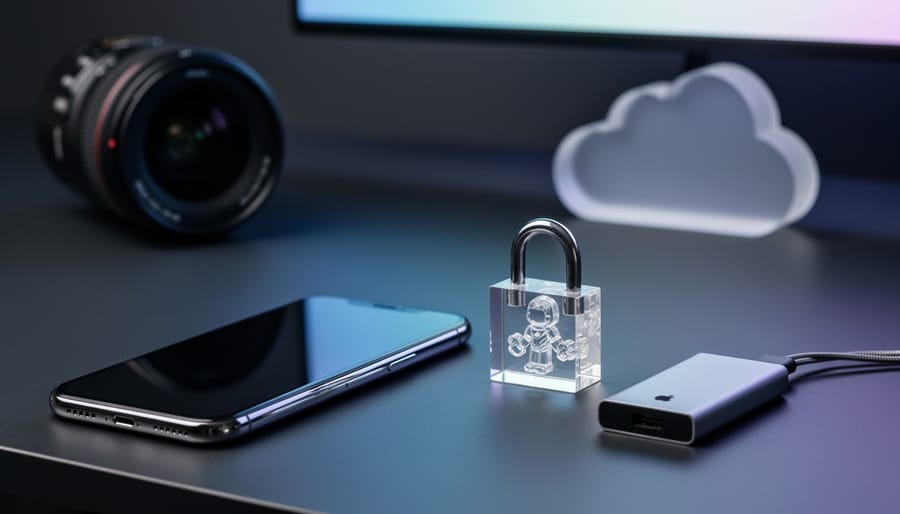
Your iPhone photos aren’t as private as you think. Those snapshots of family gatherings, client projects, and personal moments sit in a complex encryption ecosystem that changes dramatically depending on where they’re stored and which settings you’ve enabled.
Here’s what actually happens to your images: Photos stored locally on your iPhone receive hardware-level encryption through Apple’s Secure Enclave, meaning someone who steals your locked phone can’t access them without your passcode. The moment you enable iCloud Photos, however, the security equation shifts. Apple encrypts these images in transit and at rest, but holds the encryption keys themselves, giving them technical access to your photo library when served with legal requests.
This distinction matters immensely if you’re a professional photographer protecting client work, a privacy-conscious individual safeguarding personal memories, or anyone who’s ever wondered what happens during an iCloud data breach. The uncomfortable truth is that standard iCloud encryption operates differently than true end-to-end encryption, where only you control the keys.
Understanding these security layers isn’t just technical knowledge for its own sake. It’s practical information that determines whether your wedding photography portfolio, personal health documentation, or family archive remains genuinely private. The good news? You have more control than Apple’s default settings suggest, from enabling Advanced Data Protection to implementing third-party encryption solutions that put you exclusively in charge of your visual legacy.

How iPhone Photo Encryption Actually Works
On-Device Encryption: Your Phone’s First Line of Defense
The moment you snap a photo on your iPhone, something remarkable happens behind the scenes. Your device immediately encrypts that image using hardware-level security that’s baked directly into the phone’s architecture. Think of it as automatically locking each photo in its own secure vault before it even finishes saving.
At the heart of this protection is Apple’s Secure Enclave, a dedicated chip that’s physically separated from the main processor. This coprocessor manages all the encryption keys for your photos and other sensitive data. Here’s the clever part: your photos are encrypted with keys that are directly tied to your passcode, Face ID, or Touch ID. Without successfully authenticating yourself, those encryption keys remain locked away, making your photos mathematically scrambled and essentially unreadable.
This means if someone steals your iPhone, they can’t simply pull out the storage chip and access your photos on another device. The encryption is so tightly coupled with your biometric data and passcode that it would take extraordinary computing power and time to crack it, far beyond what casual thieves or even many sophisticated attackers can manage.
For photographers storing professional work or personal memories, this on-device encryption provides genuine peace of mind. Your vacation photos, client proofs, or experimental shots remain private even if your phone physically leaves your possession. The system works automatically, requiring no technical knowledge or manual activation, though creating a strong passcode significantly enhances this foundational security layer.
iCloud Photo Library: Where Things Get Complicated
Here’s where photographers need to pay close attention. When you enable iCloud Photo Library, your images sync across all your Apple devices—but the encryption situation becomes more nuanced.
By default, Apple uses what they call “standard data protection” for iCloud Photos. Your photos are encrypted both in transit (when uploading) and at rest (stored on Apple’s servers). Sounds secure, right? Here’s the catch: Apple holds the encryption keys. This means Apple can technically access your photos if required by law enforcement or if you need help recovering your account. For cloud photo security, this is a significant consideration.
Think of it like storing valuables in a bank safety deposit box where the bank keeps a master key. It’s protected from casual thieves, but the institution can access it.
Enter Advanced Data Protection, Apple’s newer option available on iOS 16.2 and later. When enabled, this feature uses end-to-end encryption for iCloud Photos, meaning only your devices hold the encryption keys. Apple cannot access your photos, even if they wanted to. It’s like having a safety deposit box where you’re the only keyholder.
The trade-off? If you forget your password and lose all your trusted devices, your photos are essentially unrecoverable—there’s no backdoor. For professional photographers with irreplaceable client work, this makes having a separate backup strategy absolutely essential.
The Security Gaps Photographers Need to Know About
Backup Vulnerability: When Your Computer Becomes the Weak Link
Here’s a scenario many photographers don’t consider: your iPhone protects photos with strong encryption, but the moment you create an iTunes or Finder backup on your computer, those images might become vulnerable. By default, local backups aren’t encrypted, meaning anyone with physical access to your computer could potentially extract your entire photo library.
This creates what security experts call a “weak link” in your protection chain. Think of it like locking your front door but leaving a window wide open. Your photos remain secure on your iPhone, but that backup sitting on your laptop? It’s essentially unprotected data stored in plain text.
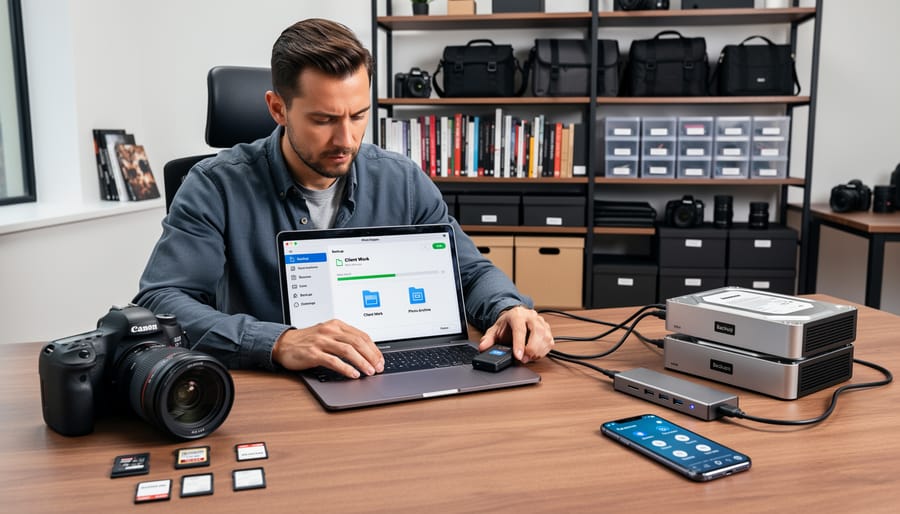
The solution is straightforward: always enable encrypted backups in iTunes or Finder. When you connect your iPhone, look for the “Encrypt local backup” checkbox and create a strong password. This ensures your backup receives the same level of protection as your device itself. For photographers regularly transferring RAW files and maintaining large image libraries across devices, implementing a comprehensive encrypted backup strategy becomes essential for protecting both your creative work and client privacy.
Shared Albums and Family Sharing Exposure
While Apple’s encryption protects photos on your device, sharing features can inadvertently expose your work to security risks. When you enable Shared Albums to collaborate with clients or team members, those photos are stored on iCloud servers using standard encryption rather than end-to-end encryption. This means Apple can technically access these images if compelled by legal requests.
For professional photographers sharing work-in-progress shots, this presents a real concern. Let’s say you’re shooting a corporate event or private wedding and want client feedback before final delivery. Once you add those images to a Shared Album, they’re no longer protected by the same robust security as photos in your personal library. Anyone with access to the shared link can view and download the images, and if that link is accidentally forwarded or intercepted, your client’s privacy could be compromised.
Family Sharing adds another layer of complexity. When you enable photo sharing within your Family Sharing group, up to five other people gain access to designated albums. While convenient for personal use, this feature becomes problematic if you mix business and personal devices or accidentally share sensitive client work with family members who may not understand professional confidentiality requirements.
The solution? Use password-protected client galleries through dedicated photography platforms for professional work, keeping iPhone sharing features strictly for personal use.
The iCloud Password Problem
Here’s the reality that catches many photographers off guard: even with all of Apple’s sophisticated encryption protecting your iPhone, there’s a significant vulnerability that has nothing to do with the technology itself. Your iCloud password is essentially a master key to your photo library.
Think of it this way: your iPhone’s device-level encryption is like having a fortress with impenetrable walls. But when you enable iCloud Photos, you’re creating a back door that opens with just a password. If someone gains access to your iCloud credentials, they can simply log into iCloud.com from any web browser and view, download, or delete your entire photo collection without ever touching your physical device.
This isn’t a theoretical concern. We’ve seen countless cases where photographers lost control of their work through phishing emails, password reuse across multiple services, or simple passwords that were easy to guess. Once someone has your iCloud password, all those encryption layers on your device become irrelevant.
The solution isn’t to abandon iCloud Photos entirely, but rather to treat your iCloud password with the same care you’d give to the key of a safe containing your most valuable work. This means using a unique, complex password generated by a password manager, never reusing it elsewhere, and most importantly, enabling two-factor authentication. Without that second authentication step, your password alone stands between your private photo collection and potential unauthorized access.
Advanced Data Protection: Apple’s Strongest Defense (And Its Trade-offs)
What Changes with Advanced Data Protection
Apple’s Advanced Data Protection takes your photo security to an entirely different level compared to standard iCloud encryption. Here’s what fundamentally changes: with Advanced Data Protection enabled, your iCloud Photos become protected with end-to-end encryption, meaning only you can decrypt and view them. Not Apple. Not law enforcement with a warrant. Not even hackers who might breach Apple’s servers.
Under standard iCloud encryption, Apple holds the encryption keys to your photos. Think of it like storing your valuables in a bank vault where the bank keeps a master key. They promise to protect it, and they generally do, but that key exists. With Advanced Data Protection, you become the sole keyholder. Apple encrypts your photos on your device before they ever leave for iCloud’s servers, and only your trusted devices can decrypt them.
This protection extends beyond future encryption threats to address current privacy concerns. In practical terms, if someone gains unauthorized access to Apple’s servers, your photos remain encrypted gibberish without your device to unlock them. The technical mechanism uses your device passcode and trusted devices as the foundation for generating unique encryption keys.
The tradeoff? Account recovery becomes more complex. Since Apple cannot access your data, losing access to all trusted devices means potentially losing your photos forever. You’ll need to designate a recovery contact or maintain a recovery key, adding responsibility but delivering genuine privacy that professional photographers handling sensitive client work increasingly demand.
The Recovery Key Dilemma
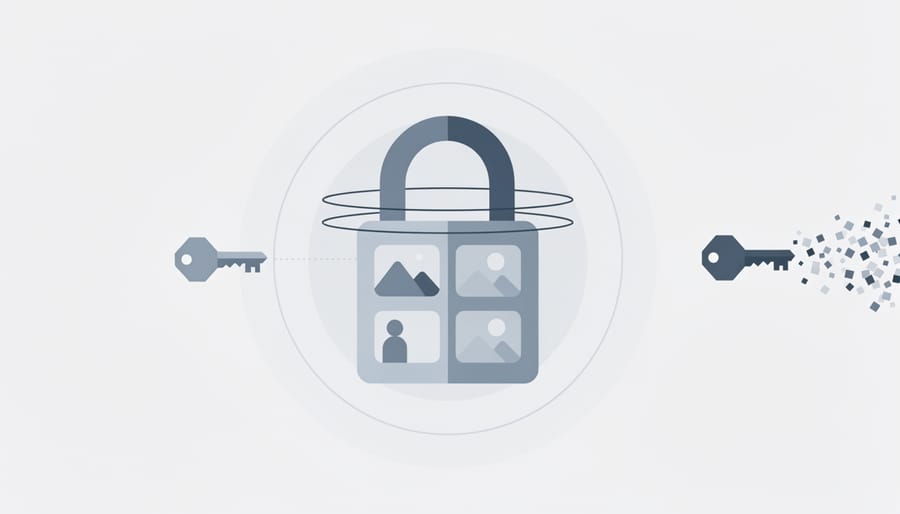
When you enable Advanced Data Protection, Apple generates a recovery key—a 28-character code that becomes your lifeline if you forget your password or lose access to your trusted devices. Here’s where things get real: lose this key, and Apple genuinely cannot help you recover your photos. This isn’t a customer service limitation—it’s the fundamental trade-off of end-to-end encryption.
For photographers, this creates a genuine dilemma. Your wedding portfolio from the past five years, those once-in-a-lifetime wildlife shots, or client work representing thousands of dollars in revenue—all potentially inaccessible if you misplace a string of characters. Apple does offer an alternative through a recovery contact (a trusted person who can help you regain access), but this requires that person to also have an Apple device and know what they’re doing in a crisis.
The practical reality? You need a recovery key management strategy. Many photographers store their recovery key in a password manager, write it on paper kept in a safe deposit box, or maintain multiple secure copies in different physical locations. Some even photograph the key and store that image offline on an encrypted external drive—a bit meta, but effective.
Before enabling Advanced Data Protection, ask yourself honestly: Am I organized enough to safeguard this recovery key for years? If you’ve ever frantically searched for a lost password or important document, consider whether the security benefits outweigh the very real risk of locking yourself out of your life’s photographic work.
Practical Photo Security Strategies for iPhone Users
Essential Security Settings Every Photographer Should Enable
Protecting your photographic work starts with a solid foundation of security settings. Think of these as the locks on your digital darkroom door—they might seem tedious to set up, but they’re absolutely essential for safeguarding years of creative work.
Start with two-factor authentication (2FA), which adds a second verification step when accessing your Apple ID. To enable it, open Settings, tap your name at the top, then select Password & Security. Choose Turn On Two-Factor Authentication and follow the prompts. You’ll need to verify your identity with a trusted device or phone number whenever signing in, which means even if someone discovers your password, they still can’t access your photos without that second authentication factor.
Next, create a strong, unique password for your Apple ID—not something you’ve used elsewhere. A good password combines uppercase and lowercase letters, numbers, and symbols. Consider using a password manager to generate and store complex passwords. This is particularly important for professional photographers whose livelihoods depend on protecting client work.
For backups, ensure encryption is enabled in iTunes or Finder when backing up to your computer. Connect your iPhone, select it in iTunes or Finder, then check the box for “Encrypt local backup.” This protects everything on your device, including passwords and health data, not just photos.
Finally, consider Apple’s Advanced Data Protection for iCloud, available in iOS 16.2 and later. This feature extends end-to-end encryption to iCloud Photos, meaning Apple cannot access your images even if compelled by authorities. Enable it through Settings, your name, iCloud, and Advanced Data Protection. Remember, this provides maximum security but requires careful management of recovery contacts or keys—losing access means your photos are truly inaccessible.
Managing Access: Who Can See Your Photos and When
Encryption protects your photos at rest, but managing who can access them requires your active attention. Think of it this way: even the strongest lock on your door doesn’t help if you hand out keys to everyone who asks.
Start by reviewing app permissions regularly. Go to Settings, then Privacy & Security, and tap Photos. You’ll see every app that’s requested photo access. Here’s where many photographers discover surprises—apps they haven’t used in months still have full library access. Consider changing permissions from “Full Access” to “Selected Photos” for apps that don’t need your entire library. That food delivery app requesting photo access? It probably only needs one image for your profile picture, not your entire portfolio.
Your Hidden album offers a convenient way to keep personal photos out of view, but remember it’s not encrypted separately. Anyone with your passcode can find it by scrolling to the bottom of your Albums tab. For truly sensitive images, consider third-party encrypted vault apps instead.
The Recently Deleted folder deserves special attention. Photos sit here for 30 days before permanent deletion, remaining accessible to anyone who unlocks your phone. If you’re deleting sensitive client work or personal photos, open Recently Deleted immediately and remove them permanently.
Shared Albums represent another potential vulnerability. Review who has access to these collections by opening the album, tapping the people icon, and checking your subscriber list. Former collaborators or clients may still have viewing rights you forgot to revoke. Make this a quarterly habit, especially if you frequently share project work with different people.
Third-Party Encryption Apps: When Built-in Security Isn’t Enough
For photographers handling sensitive client work or confidential assignments, Apple’s built-in encryption might not provide the level of control you need. Third-party encrypted vault apps offer an additional security layer by creating password-protected, separately encrypted containers within your iPhone.
Apps like KeepSafe, Private Photo Vault, and Secret Photo Vault let you move sensitive images into encrypted folders that require authentication separate from your device unlock. This approach is particularly valuable for wedding photographers storing pre-reveal images, photojournalists working on investigative projects, or commercial shooters handling unreleased product photos. If someone gains access to your unlocked phone, they still can’t access these protected vaults without additional credentials.
The trade-off? These apps add complexity to your workflow and create another point of potential failure if you forget passwords. They also exist outside your comprehensive photo storage strategy, meaning you’ll need to remember to back up vault contents separately.
Consider this extra protection only if you genuinely handle sensitive material that requires isolation from your general photo library. For most photographers, Apple’s encryption combined with strong device security provides adequate protection without the added workflow friction.
What to Do If Your iPhone or iCloud Account Is Compromised
If you suspect your iPhone or iCloud account has been compromised, acting quickly can make the difference between a minor scare and a major privacy violation. Here’s your emergency action plan.
First things first: immediately change your Apple ID password. Go to Settings, tap your name at the top, then Password & Security. Choose a strong, unique password you haven’t used anywhere else. While you’re there, enable two-factor authentication if you haven’t already. This adds a critical layer of protection that makes unauthorized access significantly harder.
Next, force all devices to sign out of your Apple ID. On Apple’s website, log into your account, navigate to Security, and select “Sign Out of All Devices.” This kicks any unauthorized devices off your account immediately. You’ll need to sign back in on your own devices, but it’s worth the minor inconvenience.
Check your recent account activity. In your Apple ID settings online, review which devices are currently signed in and look for anything unfamiliar. Remove any devices you don’t recognize. Also check your iCloud storage to see if anything unusual has been uploaded or if storage usage has changed unexpectedly.
Review your photo library for suspicious activity. Look at recently shared albums, check if any photos have been added to shared streams without your knowledge, and verify your iCloud Photo settings haven’t been changed. In the Photos app, go to Albums and scroll to the bottom to find Recently Deleted. If you see photos you didn’t delete, someone else may have accessed your account.
Consider temporarily disabling iCloud Photos while you secure everything. This prevents any further syncing until you’re confident your account is safe. And remember, this situation highlights why maintaining a bulletproof backup workflow separate from iCloud is essential for professional photographers.
Apple’s iPhone encryption is genuinely robust, providing meaningful protection for your photographic work. However, it’s essential to understand that strong encryption is only foolproof when paired with smart security practices. Default settings alone won’t necessarily keep your images safe from all potential threats, whether that’s a stolen device, a compromised iCloud account, or unauthorized access by someone who knows your passcode.
The good news? You don’t need to be a cybersecurity expert to significantly improve your photo protection. Even implementing just the basic measures we’ve discussed—enabling a strong passcode, activating two-factor authentication, and being selective about what you sync to iCloud—will dramatically enhance your security posture. For professional photographers handling client work or anyone with sensitive personal images, taking those extra steps toward Advanced Data Protection makes perfect sense.
Think of photo security as an extension of your creative process. You invest time perfecting composition, lighting, and editing. Protecting those images deserves similar attention and care. Your photographic work represents memories, artistry, and sometimes your livelihood. Taking action today to secure those photos is just as important as the moment you pressed the shutter button to capture them.




 By
By