By
By 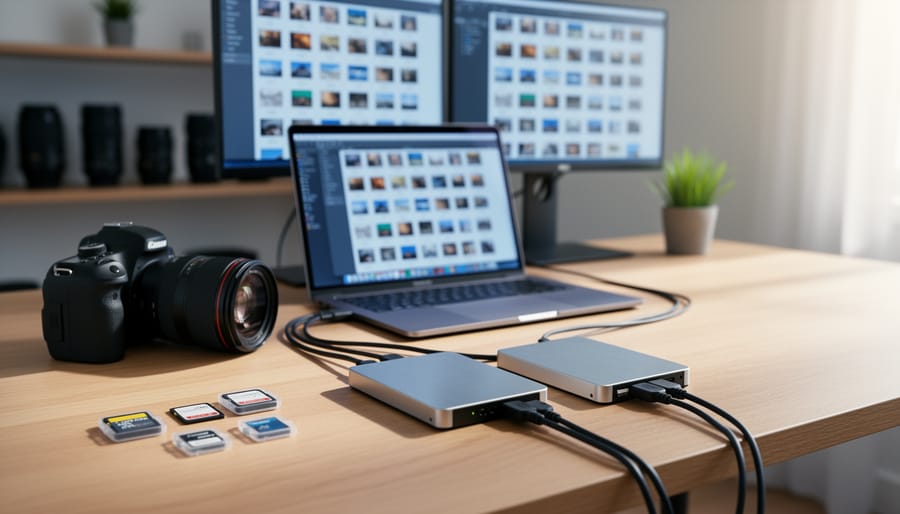
Understand that your photography catalog is more than just a filing system—it’s the central nervous system of your entire photography workflow, storing thousands of editing decisions, keyword tags, and organizational structures you’ve built over years. When migration becomes necessary, whether you’re moving from Lightroom to Capture One, switching to open-source alternatives like Darktable, or consolidating multiple catalogs, the stakes are genuinely high. Not all catalog data transfers cleanly between systems, and some metadata simply won’t survive the journey.
Evaluate your catalog’s actual portability before committing to migration. Export a small test batch of images with their metadata to your target system and verify what transfers: basic EXIF data almost always survives, but proprietary edits, facial recognition tags, collections, and virtual copies often don’t. This reality check prevents discovering catastrophic data loss after you’ve already committed.
Export metadata to XMP sidecar files before migration begins. Most professional catalog systems can write editing information and keywords directly into XMP files that travel with your images, creating a universal backup that works across platforms. This step takes hours for large catalogs but creates an insurance policy against migration failures.
Document your current organizational structure with screenshots and notes about collections, smart collections, folder hierarchies, and keyword taxonomies. You’ll likely need to manually recreate significant portions of this structure in your new system, and having a reference guide transforms a frustrating guessing game into a straightforward rebuilding process that preserves your workflow logic.
What Photography Catalogs Actually Do (And Why Migration Matters)
At their core, photography catalogs are specialized databases that help you manage thousands—even hundreds of thousands—of images without losing your sanity. Think of them as the librarian for your photo collection, keeping track of where every image lives on your hard drive while storing all the essential information about each photograph.
When you import photos into photo organization software like Lightroom, Capture One, or ON1, the catalog creates a reference to each file’s location and begins building a rich profile of metadata around it. This metadata includes technical details captured by your camera—shutter speed, aperture, ISO, lens information—along with organizational information you add yourself, like keywords, star ratings, color labels, and collections.
Here’s what makes catalogs truly powerful: they store your editing history without actually changing the original image files. When you adjust exposure or apply a preset, those instructions are saved as a recipe within the catalog. Your original file remains untouched, which means you can always revert to the starting point. This non-destructive editing approach is fundamental to modern photography workflows.
The organizational structure within catalogs goes beyond simple folders. You can create virtual collections that group images by project, client, or theme without duplicating files or moving them around on your hard drive. One photograph of a sunset might appear in your “Best of 2024” collection, your “Landscape Portfolio” collection, and your “Golden Hour” collection simultaneously.
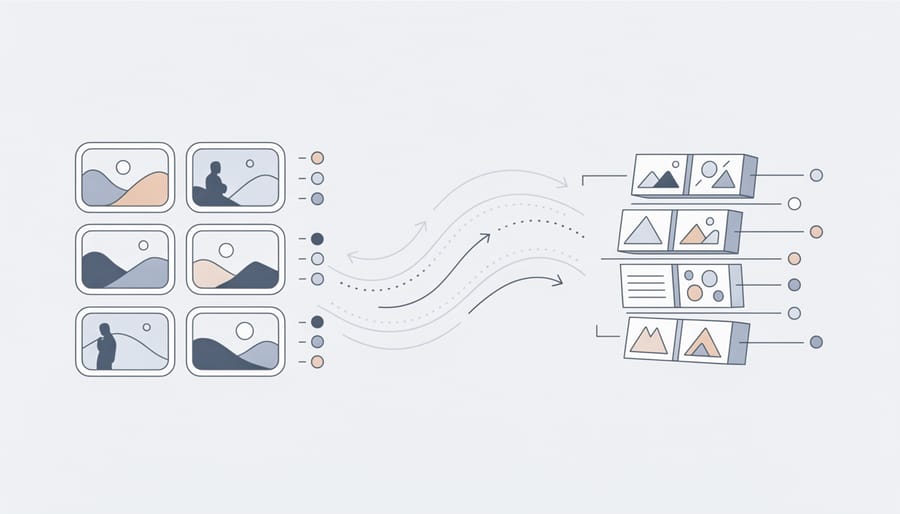
So why does migration matter? Because all this organizational work—the keywords you’ve meticulously added, the custom collections you’ve built, the edits you’ve perfected—lives primarily within that catalog database. When you switch to a different catalog system, you’re not just changing software; you’re attempting to translate years of organizational work from one proprietary language to another. Not everything makes the journey intact, which is exactly why understanding the migration process before you begin is crucial.
The Real Cost of Switching Catalogs
Metadata: The Invisible Thread Holding Everything Together
Think of metadata as the DNA embedded in every photo you take. Even when an image looks like just a colorful rectangle on your screen, it carries invisible information that tells the story of how, when, and where it was captured. Understanding these different metadata types is essential when migrating between catalog systems, because not all metadata travels equally well.
EXIF (Exchangeable Image File Format) data is the most universal type. Your camera writes this information directly into each photo at the moment of capture, recording technical details like shutter speed, aperture, ISO, focal length, and camera model. EXIF metadata is embedded in the image file itself, which means it follows your photos everywhere, regardless of which catalog system you use. This portability makes EXIF incredibly reliable during migration.
IPTC (International Press Telecommunications Council) metadata was originally developed for photojournalism but is now widely used for descriptive information like captions, keywords, copyright notices, and location details. When properly written to your image files, IPTC data transfers well between systems.
XMP (Extensible Metadata Platform), developed by Adobe, serves as a modern wrapper that can contain both EXIF and IPTC information, plus additional catalog-specific data. Here’s where things get tricky: some catalog systems store XMP data in sidecar files rather than embedding it directly in your images, which can cause problems during migration if those sidecar files don’t transfer properly.
Effective metadata management means understanding which information lives inside your photos versus which exists only in your catalog’s database.
Non-Destructive Edits and the Compatibility Problem
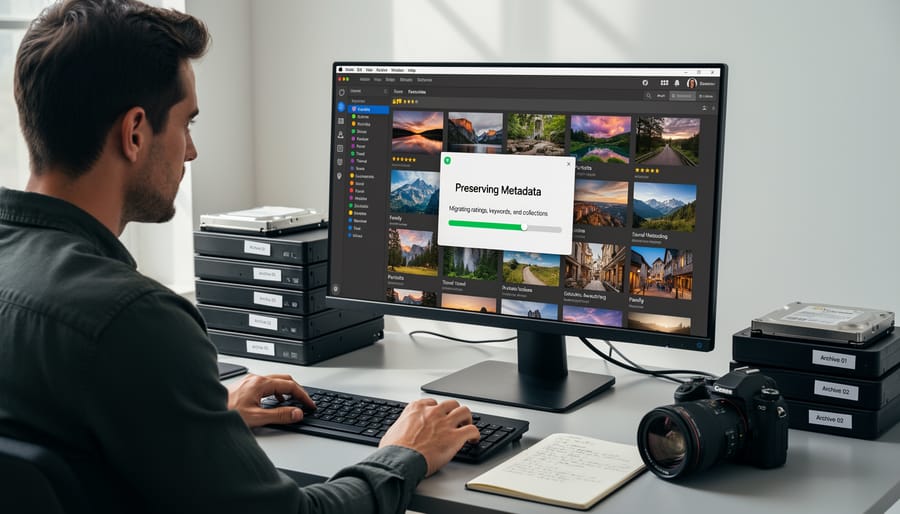
One of the biggest challenges you’ll face when moving between catalog systems is that your carefully crafted edits often don’t come along for the ride. Here’s why: when you adjust exposure, tweak colors, or apply local adjustments in Lightroom, Capture One, or any other program, these changes aren’t actually written to your original image file. Instead, they’re stored as instructions in a proprietary format unique to that specific software.
Think of it like writing directions in different languages. Lightroom speaks its own dialect, Capture One speaks another, and while both are giving instructions about how to display your photo, they simply can’t understand each other’s notes. Some programs use XMP sidecar files, which are more universal and can carry basic metadata like keywords and ratings, but the complex editing instructions themselves remain locked in proprietary formats.
This means when you migrate, you’ll typically transfer your original RAW files and basic metadata, but those nuanced tone curve adjustments or precise color grading? They stay behind. The practical reality is that you’ll need to decide whether to export edited versions as new image files (losing the flexibility of RAW editing) or accept starting fresh with your adjustments in the new system.
Understanding DAM Interoperability (Translation: Making Different Systems Talk to Each Other)
DAM interoperability sounds intimidating, but it’s really just about whether your catalog software can communicate with other programs in your workflow. Think of it like file formats for word processors—some play nicely together, while others create frustrating compatibility issues.
Here’s the reality: most photography catalogs exist in somewhat isolated ecosystems. Lightroom Classic speaks its own language, Capture One has its own dialect, and Photo Mechanic operates differently altogether. When these systems interact, they typically exchange information through universally recognized formats like XMP sidecar files (small text files that store your editing instructions and metadata) or by embedding data directly into image files.
The good news? Basic metadata—keywords, ratings, and captions—generally transfers reasonably well between systems. If you’ve tagged your beach photos with “sunset” and “California” in Lightroom, Capture One can usually read those tags. The challenge comes with proprietary features. Lightroom’s virtual copies, Capture One’s layers, or ON1’s local adjustments don’t translate because each company designed unique tools that competitors can’t replicate.
Some combinations work better than others. Photo Mechanic and Lightroom, for example, cooperate fairly well since Photo Mechanic focuses on cataloging and culling rather than raw processing. Bridge integrates smoothly with Photoshop since Adobe designed them together. Conversely, moving between Lightroom and Capture One means accepting that advanced edits won’t survive the journey—you’ll preserve your organizational structure but need to recreate complex processing work.
The practical takeaway? Interoperability works best when you focus on universal elements: file organization, basic metadata, and standard formats like JPEGs and TIFFs. Proprietary features and advanced edits typically don’t make the jump, which is why understanding these limitations before migration prevents frustrating surprises later.
Popular Photography Catalogs and Their Migration Quirks
Adobe Lightroom Classic: The Industry Standard
Lightroom Classic remains the most widely used catalog system in photography, which makes it both a common migration starting point and destination. The good news? Lightroom exports metadata beautifully through XMP sidecar files, which capture your star ratings, color labels, keywords, and develop settings. When migrating to alternatives like Capture One or ON1 Photo RAW, these adjustments travel along with your images, though they won’t translate perfectly since each program interprets edits differently.
What doesn’t migrate well are organizational structures unique to Lightroom, particularly collections and smart collections. These exist only within Lightroom’s catalog database and have no universal equivalent in XMP metadata. You’ll need to recreate these manually in your new system. Virtual copies also don’t transfer, since they’re a Lightroom-specific concept.
The most common migration path from Lightroom involves exporting your catalog’s metadata to files first, then importing those images into your new catalog system. Moving to Lightroom from other programs follows similar principles, though you may need to convert proprietary RAW adjustments to a neutral state first. Many photographers maintain Lightroom alongside newer systems during transition periods, gradually shifting their workflow as they become comfortable with the replacement platform’s organizational approach.
Capture One: The Professional Alternative
Capture One has earned its reputation among professional photographers, particularly in fashion and commercial work, but migrating to or from this platform requires careful planning. The software imports RAW files from most cameras while maintaining sidecar XML files for adjustments, which makes backing up your work straightforward but creates different compatibility challenges than Lightroom’s proprietary catalog structure.
When importing from Lightroom, Capture One includes a built-in migration tool that transfers your folder structure and basic metadata like ratings and keywords. However, expect to lose your adjustment history since the two programs process RAW files differently. This means you’ll see variations in how your images look, and any localized adjustments or advanced edits simply won’t transfer. One wedding photographer I know spent weeks re-editing key portfolio pieces after switching because the skin tones rendered differently.
Exporting from Capture One is relatively painless since it uses industry-standard XMP sidecars. Your metadata travels well to other XMP-compatible systems, though you’ll still face the same limitation with proprietary adjustments. The biggest migration consideration is cost and learning curve. Capture One’s interface differs significantly from Lightroom’s, and the subscription runs higher. Before committing, download the trial version and test your actual workflow with real projects to see if the professional-grade color tools justify the investment and transition effort.
Photo Mechanic: The Speed Demon
Photo Mechanic isn’t a traditional catalog system, but it deserves special mention for photographers juggling multiple catalogs or planning a migration. Think of it as the Swiss Army knife of metadata management. Its superpower is lightning-fast browsing and editing of IPTC and EXIF data across thousands of images without importing them into a database. Many professional sports and wedding photographers use Photo Mechanic for initial culling and captioning, then pass those images to Lightroom or Capture One for editing.
During migrations, Photo Mechanic becomes invaluable as a bridge tool. Since it writes metadata directly to XMP sidecar files or image headers, those keywords and captions travel with your photos regardless of which catalog system you choose next. If you’re moving from one application to another, run your images through Photo Mechanic first to ensure all metadata is embedded. This creates a safety net, preserving your organizational work even if the destination catalog doesn’t perfectly import everything from your source system.
Open-Source Options: Darktable, digiKam, and Beyond
Open-source catalogs like Darktable and digiKam offer a compelling advantage for photographers worried about vendor lock-in: complete transparency and control over your data. These applications store your edits and metadata in open, documented formats that you can access directly without relying on proprietary databases.
Darktable uses XMP sidecar files and a SQLite database, making your editing history readable and transferable. If you decide to switch systems, your adjustments aren’t trapped in a black box. Similarly, digiKam stores metadata using standard formats and maintains its catalog in SQLite, which many migration tools can read directly.
The real-world benefit? You’re not betting your entire workflow on a company’s long-term stability or business decisions. When Adobe discontinued standalone Lightroom licenses, many photographers who’d built decade-long catalogs felt stuck. Open-source alternatives eliminate that anxiety.
However, interoperability isn’t automatic. While these programs excel at reading standard EXIF and IPTC metadata, proprietary editing adjustments from commercial software won’t translate. You’ll maintain your organizational structure and keywords, but complex edits typically need recreating. Think of open-source catalogs as your safeguard against future migration headaches rather than a magic conversion tool for past work.
Cloud-Based Catalogs: Lightroom CC, Mylio, and Others
Cloud-based catalogs like Lightroom CC and Mylio offer convenience but come with unique migration challenges. The biggest consideration? You typically can’t export your catalog structure itself—only your images and basic metadata. This means if you’re moving from Lightroom CC to a desktop solution, you’ll lose organizational elements like Collections and some sync data. Offline access varies significantly too. Mylio excels here, offering robust offline functionality where you choose which folders sync to which devices. Lightroom CC requires online connectivity for full catalog access, though you can work on downloaded Smart Previews temporarily. Before migrating away from cloud systems, ensure you’ve downloaded full-resolution originals and exported all edits as XMP sidecar files—these become your safety net when rebuilding elsewhere.
Your Pre-Migration Survival Checklist
Before you dive into migrating your photography catalog, let’s talk about protecting yourself from potential disaster. Think of this as your safety net—because even the smoothest migration can have unexpected hiccups.
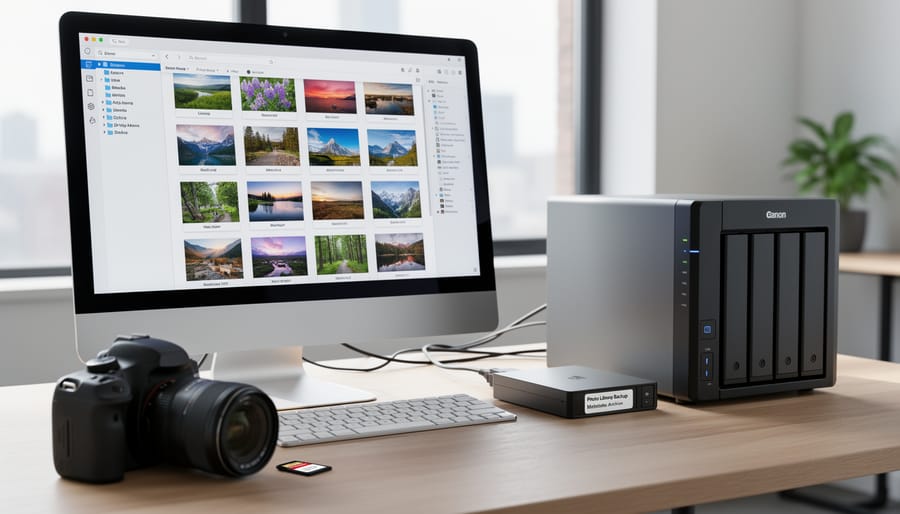
First and foremost, create a complete backup of your existing catalog. This isn’t just about the catalog database file itself—you need everything. That includes your original image files, sidecar files (those XMP files sitting next to your RAW images), preview caches, and any presets or templates you’ve customized. Store this backup on a separate drive, not just a different folder on the same hard drive. If you want to dive deeper into backup strategies, they’re worth mastering before any major catalog change.
Next, document your current workflow. Take screenshots of your folder structure, naming conventions, and keyword hierarchies. Export a list of your collections or albums—you’ll thank yourself later when trying to recreate them in your new system. Many photographers skip this step and then spend weeks trying to remember how they organized their vacation photos from three years ago.
Create a small test catalog with maybe 100-200 representative images. Include different file types you regularly work with—JPEGs, various RAW formats, maybe some TIFFs. Apply different edits: some basic exposure adjustments, complex local adjustments, graduated filters. Add keywords, ratings, and color labels. This test catalog becomes your guinea pig, letting you identify problems without risking your entire library.
Finally, verify you have enough storage space. Catalog migrations often create duplicate files or require both systems running simultaneously for a transition period. As a rule of thumb, ensure you have at least twice the space your current catalog occupies.
Give yourself time. Don’t attempt this migration the night before a client deadline or during your busiest shooting season. Patience here prevents panic later.
Migration Strategies That Actually Work
The Direct Export/Import Method
Most modern photography catalogs include built-in export and import functions designed specifically for migration scenarios. Adobe Lightroom Classic, for example, offers the “Export as Catalog” feature, which packages selected images along with their metadata, adjustments, and folder structure into a portable catalog file. This works beautifully when moving between computers running the same software, or when sharing projects with collaborators who use identical catalog versions.
The catch? These native tools rarely work across different platforms. You can’t export a Lightroom catalog and expect Capture One to understand it directly. Think of it like trying to open a Word document in Photoshop—they speak different languages entirely.
When native export/import shines is during same-software transitions: upgrading to a new computer, creating backup catalogs, or splitting a massive catalog into smaller, project-specific ones. A wedding photographer might export all 2024 weddings into a dedicated catalog for archival purposes while keeping the master catalog lean.
The limitations become apparent with cross-platform moves. While you can export metadata as XMP sidecar files that other programs recognize, you’ll lose proprietary features like Lightroom’s virtual copies, collections, and adjustment history. Understanding these boundaries upfront helps set realistic expectations for what survives the journey.
Using XMP Sidecar Files as Your Safety Net
Think of XMP sidecar files as your metadata insurance policy. These small text files sit alongside your images and store all your edits, keywords, ratings, and other metadata in a universal format that different catalog systems can read. If your primary catalog ever becomes corrupted or you decide to switch platforms, your XMP files preserve that valuable work.
Here’s how to make XMP files work for you. First, enable automatic XMP writing in your current catalog software. In Lightroom Classic, go to Catalog Settings and check “Automatically write changes into XMP.” For raw files, this creates separate .xmp files; for JPEGs and TIFFs, metadata embeds directly in the file. Get in the habit of manually saving metadata to files after major editing sessions using Command+S (Mac) or Control+S (Windows).
Store XMP files in the same folders as your images, never separately. This keeps everything together if you move files or backup your library. When migrating to a new catalog system, most applications will automatically detect and import existing XMP data during the initial file scan.
One real-world scenario: A wedding photographer I know had Lightroom crash during a busy season. Because she’d religiously saved her metadata to XMP files, switching to Capture One took just hours instead of days. She imported her raw files, and all her color labels, star ratings, and keyword tags came right along.
The Bridge Tool Approach
Sometimes the best way to move between incompatible catalog systems is through a middleman. Tools like Photo Mechanic and ExifTool act as translators, helping you preserve critical metadata during transitions. Think of them as bridges connecting islands that don’t normally communicate.
Photo Mechanic excels at reading IPTC data from one system and applying it to images before importing into another. For example, if you’re moving from Lightroom to Capture One, you might export your images with embedded metadata, run them through Photo Mechanic to verify everything transferred correctly, then import clean files into your new catalog. This intermediate step catches missing keywords or captions before you commit.
ExifTool offers command-line power for bulk operations. While it requires some technical comfort, it’s invaluable for extracting specific metadata fields, converting between formats, or batch-applying information that didn’t survive the initial transfer. Many photographers keep it in their toolkit specifically for rescue operations when standard migration methods fail to preserve custom fields or hierarchical keywords.
What You’ll Definitely Lose (And How to Live With It)
Let’s be realistic: some things won’t make the journey to your new catalog system, and that’s okay. Understanding what you’ll lose helps you plan accordingly rather than discovering gaps after the fact.
Edit history is typically the first casualty. Those step-by-step adjustments you made in your source application—the three different crops you tried, the exposure tweaks you walked back—usually won’t transfer. Your destination catalog will see only the final state of your image. For most photographers, this isn’t catastrophic. Your finished edits remain intact; you simply lose the ability to see how you got there. Think of it like moving to a new city: you bring your belongings, but the path you took to acquire them stays behind.
Face recognition data presents another common loss. If you’ve spent hours tagging people in Lightroom’s face detection feature, those associations rarely export cleanly to other systems. The workaround? Prioritize converting important face tags to keyword metadata before migrating. Yes, it’s manual work, but focus on photos that truly matter—family events, client portraits, key projects—rather than attempting to tag every casual snapshot.
Custom collections and organizational structures often don’t survive intact either. Smart collections based on complex criteria might need rebuilding from scratch. Here’s where prioritization matters most: document your five to ten most-used collections before migrating, then recreate just those essential ones first. The others? You might discover you never actually needed them.
Virtual copies deserve special mention. These create-free variations of images within your catalog, but they’re catalog-specific features. Convert critical virtual copies to actual duplicate files before migrating if you need to preserve different interpretations of the same image. For everything else, screenshots of your settings can serve as reference if you ever need to recreate a particular look.
Building a Future-Proof Workflow
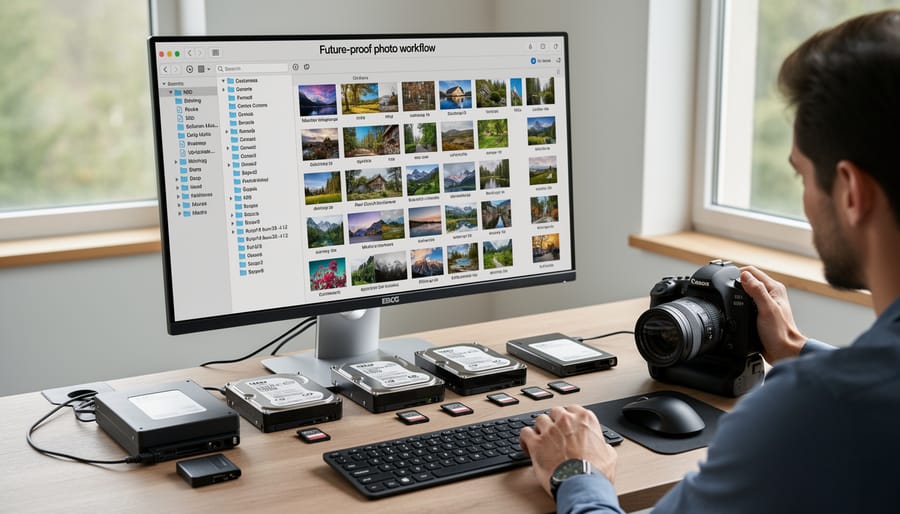
The secret to surviving future catalog migrations isn’t choosing the perfect software today—it’s organizing your photos in ways that transcend any single application. Think of your catalog system as temporary housing for your images, not a permanent vault. By building a future-proof workflow, you’ll ensure your organizational efforts travel with you, no matter where technology takes you next.
Start with your folder structure, which exists independently of any cataloging software. Create a logical hierarchy based on dates, projects, or clients—whatever makes sense for your work. For example, a wedding photographer might use “2024/Smith-Wedding/Ceremony” while a landscape shooter might prefer “2024/Iceland/Glaciers.” This structure remains intact even if you switch between Lightroom, Capture One, or any other system.
Next, embrace metadata standards that work everywhere. Write keywords, captions, and copyright information directly into your image files using IPTC fields rather than relying on proprietary catalog features. When you rate a photo five stars in Lightroom, that rating gets embedded in the file’s XMP metadata, making it readable by other applications. The same goes for color labels, face tags, and location data when possible.
Keep your raw files and sidecar XMP files together in the same folders. These small XML files contain all your edits and metadata, acting as portable records of your work. Many photographers don’t realize these files can be imported into different cataloging systems, preserving much of their organizational effort.
Finally, maintain a simple backup strategy that includes both your image files and catalog databases. Export important collections as keyword-tagged smart albums rather than relying on complex proprietary features. The goal is creating an organizational system where switching catalogs becomes an afternoon project rather than a career-disrupting catastrophe.
Migrating your photography catalog doesn’t have to be the nightmare scenario many photographers imagine. Yes, it requires time and careful planning, but thousands of photographers successfully switch systems every year without losing their minds or their metadata. The key is understanding what you’re actually trying to preserve and being realistic about what matters most to your workflow.
Remember that no migration will be 100% perfect, and that’s okay. Your star ratings might become color labels, or your custom keywords might need reorganization. But your images remain intact, and most of the critical information transfers successfully when you follow a methodical approach. The photographers who struggle most are those chasing absolute perfection rather than focusing on what actually impacts their day-to-day work.
Before you start any migration, take time to identify your non-negotiables. Maybe it’s your keyword hierarchy, perhaps it’s your collection structure, or possibly it’s those carefully crafted virtual copies. Whatever matters most to your business or creative process deserves the bulk of your attention during planning.
Also recognize that migration often presents an opportunity to clean house. Those 47 nearly identical keywords you created over the years? This is your chance to consolidate. That chaotic collection structure from 2015? Time for a refresh.
Ultimately, the best catalog system is the one that serves your specific needs today and adapts as those needs evolve. Don’t let fear of migration lock you into a system that no longer works for you.





 By
By