 By
By 
A print resolution calculator tells you the optimal print size for your digital images by dividing pixel dimensions by your target PPI (pixels per inch). Enter your image’s width and height in pixels, choose a resolution between 150 and 300 PPI depending on viewing distance, and the calculator instantly shows the maximum size you can print without visible quality loss. For most wall prints viewed from three feet away, 180 PPI delivers excellent results. Close-up prints like photobooks need 240-300 PPI.
Understanding this relationship saves photographers from common disasters. A stunning 24-megapixel image from your camera contains roughly 6000 x 4000 pixels. At 300 PPI, that produces a beautiful 20 x 13.3 inch print. Try stretching it to 40 x 26 inches at the same resolution, and you’ll see visible pixelation. Drop to 150 PPI for that larger size, though, and the print looks sharp when viewed from across the room.
The confusion stems from one simple fact: pixels are fixed, but print size and resolution aren’t. Your camera captures a set number of pixels. How you distribute those pixels across physical inches determines sharpness. Pack them tightly at 300 PPI for a small, crisp print. Spread them at 150 PPI for a large poster meant for distant viewing. The calculator does this math instantly, eliminating guesswork and preventing expensive reprints.
This guide walks through choosing the right calculator, interpreting results for real-world scenarios, and troubleshooting when your images fall short of your printing ambitions.
Understanding Print Resolution and PPI
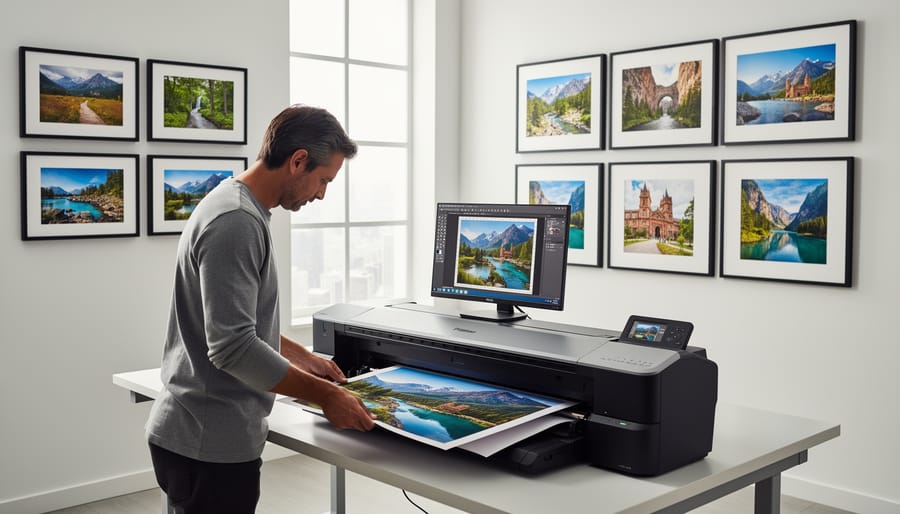
Print resolution is simpler than it sounds once you understand what PPI actually measures. When you see “300 PPI,” that’s pixels per inch, the number of image pixels packed into each linear inch of your printed photo. A 3000-pixel-wide image printed at 300 PPI produces a 10-inch-wide print. That’s the entire calculation.
PPI and DPI often get used interchangeably, but they’re technically different. PPI refers to your digital image file, while DPI (dots per inch) describes how printers lay down ink droplets. A printer might use 2400 DPI to reproduce your 300 PPI image, placing multiple ink dots per pixel to create smooth color transitions. For sizing your prints, you only need to worry about PPI.
The 300 PPI standard exists because that’s roughly where the human eye stops distinguishing individual pixels when viewing from a comfortable distance of 12-18 inches. It’s the go-to number for anything you’ll examine closely: portfolio prints, photo books, framed portraits on a desk, or exhibition prints where viewers step up for a closer look. Professional labs default to 300 PPI because it guarantees crisp detail regardless of viewing conditions.
But 300 PPI isn’t always needed. A 40×60 inch canvas hanging on a living room wall looks sharp at 150-180 PPI because no one views it from 18 inches away. Stand back three feet and your eye naturally blends pixels together. Billboard photographers routinely print massive images at 100 PPI or lower because viewers never get closer than 20 feet.
This viewing distance relationship is what makes print resolution calculators valuable. They don’t just tell you whether your file meets 300 PPI at a given size, they help you decide if lower resolutions will work for your specific scenario. A 24-megapixel file won’t make a crisp 24×36 inch print at 300 PPI, but it’ll look excellent at that size for wall display because the math changes when viewing distance increases.
Think of it this way: a coffee table book demands 300 PPI because readers hold it close. That same image printed as lobby décor can drop to 180 PPI without anyone noticing, purely because they’re standing farther back.
What You’ll Need Before You Calculate
Before you open any print resolution calculator, you’ll need three pieces of information: your image’s pixel dimensions, your intended print medium, and the viewing distance for the finished print. Having these details ready makes the calculation straightforward and accurate.
Finding Your Image’s Pixel Dimensions
Your camera records images at specific pixel dimensions, the width and height in pixels. In Lightroom, select an image and look at the Metadata panel; you’ll see dimensions listed as something like “6000 × 4000 pixels.” In Photoshop, open the image and go to Image > Image Size to view the exact pixel width and height. If you’re using a basic image viewer on Windows, right-click the file, select Properties, then the Details tab. On Mac, select the file and press Command+I to open Get Info, where dimensions appear under “More Info.”
These numbers tell you how much raw data you’re working with. A 24-megapixel camera typically produces files around 6000 × 4000 pixels, while a 45-megapixel sensor gives you roughly 8640 × 5760 pixels. Knowing these dimensions is the foundation of any print size calculation.
What You Need to Know
- Pixel width and pixel height of your image
- Intended viewing distance (close inspection, typical wall viewing, or across-room display)
- Desired quality standard (300 PPI for critical viewing, 200-250 PPI for general prints, or 150 PPI for large format)
- Print medium type (fine art paper, canvas, metal, or photo book)
- Whether you’re printing the full frame or a crop
If you plan to crop your image, you’ll need to choose the best frame first, then check the pixel dimensions of that cropped version rather than the original file. A 6000-pixel-wide image cropped to 50% becomes 3000 pixels wide, which dramatically changes your maximum print size.
The print medium matters because texture can mask lower resolution. A canvas print with visible weave tolerates 200 PPI better than glossy photo paper, where every detail shows. Understanding these variables before calculating saves time and prevents ordering prints that won’t meet your expectations.
Important Considerations Before Sizing Your Print
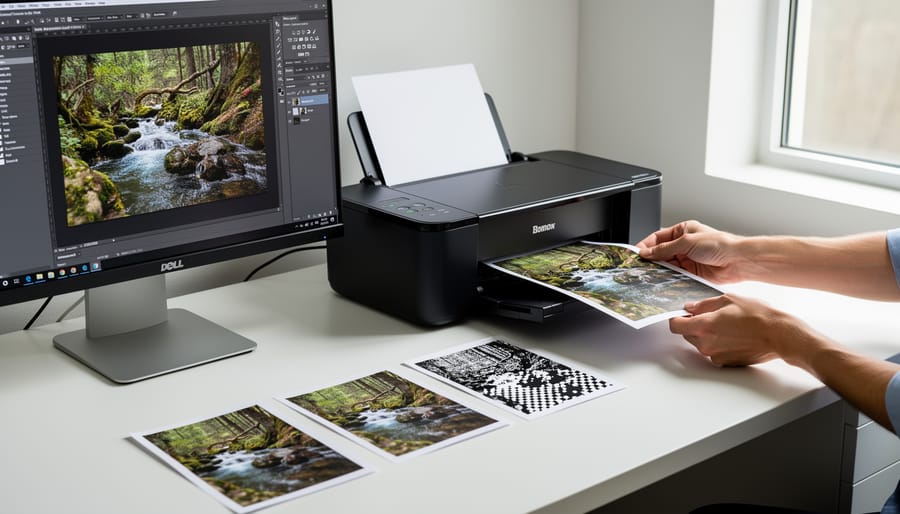
Before you jump into calculating print sizes, you need to understand the limits of what your image can actually deliver. Pushing photos beyond their native resolution comes with real consequences that no calculator can fix.
The most common mistake is assuming you can enlarge any image to any size. When you exceed your image’s natural capabilities, you’ll see pixelation, those blocky, mosaic-like artifacts that scream “blown-up photo.” Fine details turn to mush, textures lose their crispness, and edges that should be sharp become staircased and jagged. A 12-megapixel image that looks stunning at 8×10 inches might fall apart completely at 20×30 inches, no matter how good your printer is.
The crop factor compounds this problem. If you plan to crop your image before printing, say, converting a horizontal landscape to a square format, you’re working with even fewer pixels than you started with. A 6000×4000 pixel image cropped to a square gives you just 4000×4000 pixels to work with, significantly limiting your maximum print size.
The file format you’re working from matters more than most photographers realize. Printing from a high-quality RAW export retains maximum detail and gives you the best foundation for enlargement. JPEGs, especially those that have been edited and re-saved multiple times, accumulate compression artifacts that become glaringly obvious when enlarged. Social media downloads are particularly problematic, they’ve often been compressed multiple times and stripped of resolution. That Instagram post won’t make a quality 16×20 inch print, even if the calculator suggests it has enough pixels.
How to Calculate Your Optimal Print Size (Step-by-Step)
The Basic Calculation Method
At its core, print resolution math is straightforward division. The basic formula is:
Print Width (inches) = Pixel Width ÷ PPI
The same applies to height. If you know your image dimensions in pixels and your target PPI, you can calculate the maximum print size yourself.
Let’s work through a real example. Say you’ve shot with a typical 24-megapixel camera, which produces images around 6,000 × 4,000 pixels. You want a print for close viewing at the standard 300 PPI.
For width: 6,000 pixels ÷ 300 PPI = 20 inches
For height: 4,000 pixels ÷ 300 PPI = 13.3 inches
Your maximum print size at 300 PPI is 20 × 13.3 inches without any quality loss.
Now suppose you’re printing that same 6,000 × 4,000 pixel image as wall art that viewers will see from across a room. At 150 PPI (perfectly acceptable for viewing distance beyond three feet):
Width: 6,000 ÷ 150 = 40 inches
Height: 4,000 ÷ 150 = 26.7 inches
Same file, double the print dimensions, because you’ve halved the required pixel density.
Understanding this calculation shows you exactly what online calculators do behind the scenes. When you see a tool recommend a certain print size, it’s running these divisions and comparing the result to quality thresholds. Knowing the math helps you make informed decisions when results fall into gray areas.
Using an Online Calculator
Online calculators streamline the sizing process once you understand the basic math. The Print Resolution Test & PPI Scaling Calculator offers one of the clearest interfaces for photographers, but the principles apply to most web-based tools.
Start by entering your image’s pixel dimensions in the designated fields. You’ll typically see separate boxes for width and height, enter these in pixels, not inches. Most calculators pre-fill common camera resolutions (like 6000×4000 for 24MP), but always verify against your actual file.
Next, input your target PPI. The calculator usually defaults to 300 PPI, which works for standard viewing distances. Leave this unchanged unless you’re planning a large print that viewers will see from several feet away. Some calculators include a viewing distance field that automatically adjusts the recommended PPI, use this if available.
Click calculate, and you’ll see a results table showing possible print sizes. Quality indicators appear as color-coded zones: green means excellent quality at that size, yellow suggests acceptable quality with minor compromises, and red warns that the print will show visible quality loss. These aren’t absolute rules, yellow-zone prints often look fine for casual display, while red-zone sizes might work for distant viewing.
The table typically lists common print dimensions (5×7, 8×10, 16×20) with the calculated PPI for each. Scan down to your desired size and check its color code. If your target print falls in the yellow zone at 240 PPI, you’re borderline, the print will likely look sharp at normal viewing distance but might show softness under close inspection.
Pay attention to the maximum recommended size highlighted at the top of results. This represents the largest print you can make while maintaining your target PPI.
Adjusting for Viewing Distance
The beauty of print resolution is that it’s not one-size-fits-all. A photo hung on a gallery wall doesn’t need the same PPI as a portfolio print you’ll examine inches from your nose. The farther someone stands from your print, the lower your resolution can go without anyone noticing.
For prints viewed at arm’s length, think photo albums or framed portraits on a desk, stick with 300 PPI. But wall art that people view from across a room? You can drop to 150-200 PPI and maintain perceived sharpness. Large exhibition prints or canvas pieces meant for hallways work beautifully at 100-150 PPI because viewers naturally stand back to take in the whole image.
The viewing distance rule of thumb suggests people typically stand about 1.5 times the print’s diagonal away from it. For a 24×36 inch print (43-inch diagonal), that’s roughly five feet. At that distance, 150 PPI looks identical to 300 PPI.
When using your calculator, input your expected viewing distance if the tool offers that option. If it doesn’t, mentally adjust the PPI requirement down as print size increases. A 16×20 needs higher resolution than a 40×60 of the same image, not because the larger print is lower quality, but because no one examines a massive print from six inches away.
Reading and Interpreting Your Results
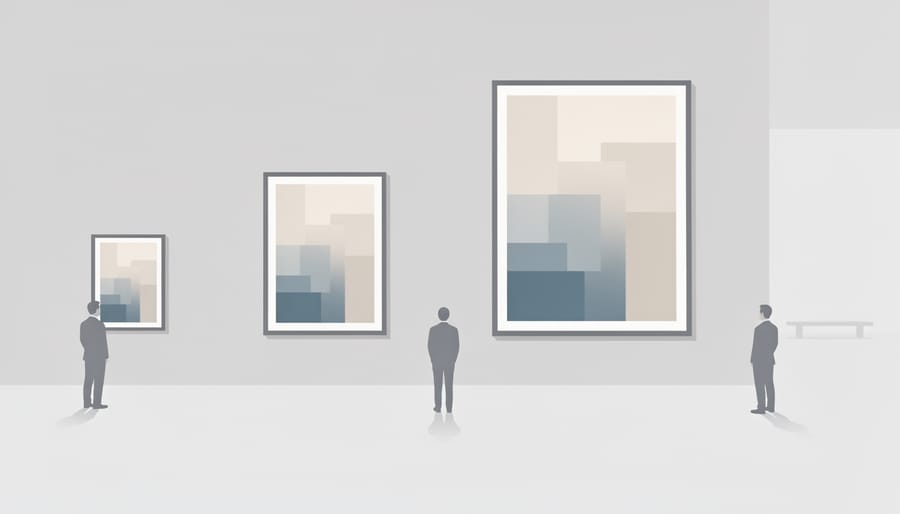
Once you’ve entered your image dimensions and desired print size into a calculator, you’ll typically see results displayed in a color-coded format or with clear numerical indicators. Understanding these outputs means knowing what constitutes acceptable quality for your specific project.
Most calculators show PPI results in zones. Green typically indicates 250+ PPI, excellent quality for any close viewing situation, from portfolio prints to framed photos on a wall. Yellow usually covers the 150-250 PPI range, which works perfectly for larger prints viewed from a few feet away, like wall art in a living room or office. Red zones below 150 PPI signal that you’re pushing quality limits, though this can still work for very large prints viewed from across a room.
The critical question is context. A 16×20 inch print at 220 PPI that lands in the yellow zone will look sharp when viewed normally, despite not hitting the 300 PPI benchmark. The same 220 PPI on an 8×10 inch print viewed up close might show softness. Match your acceptable PPI to actual viewing conditions, not arbitrary standards.
Double-check your inputs if results seem off. Common errors include entering pixel dimensions in the wrong fields, confusing width with height on portrait-oriented images, or accidentally inputting your desired PPI instead of your target print dimensions. If a calculator suggests you can make a poster-sized print from a phone photo, you’ve likely made an input error.
When your image falls slightly short, say 240 PPI instead of your target 300, you have options before abandoning your desired size. First, consider whether that difference actually matters for your viewing distance. A print viewed from three feet away won’t show the difference between 240 and 300 PPI. Second, evaluate your print medium: fine art paper reveals more detail than canvas, which can hide minor resolution limitations through its texture.
If you’re just barely in the red zone, reducing your print dimensions by an inch on each side often moves you back into acceptable territory. A 19×13 inch print instead of 20×14 might be the sweet spot between your quality standards and your compositional vision. Sometimes that slight adjustment makes all the difference between a print you’re proud of and one that feels compromised.
Real-World Printing Scenarios
Scenario 1: Gallery Print from High-Resolution File
Let’s work through a realistic gallery scenario. You’ve captured a stunning landscape with a 45-megapixel camera, something like a Canon EOS R5 or Sony α7R V, and want to print it at 24×36 inches for exhibition.
A 45MP file measures roughly 8192 × 5464 pixels. Plug these numbers into your calculator with a target of 24×36 inches. The math reveals you’ll achieve approximately 228 PPI on the long edge and 227 PPI on the short edge.
This sits below the magical 300 PPI figure, but here’s where viewing distance saves you. Gallery prints are typically viewed from 3-5 feet away, not 12 inches like a magazine. At that distance, 200-240 PPI delivers excellent quality, your eye physically cannot resolve the difference from 300 PPI.
The calculator confirms this print is firmly in the acceptable range. You can proceed confidently to printing, knowing the technical foundation supports your creative vision. The colors, tones, and details you captured will translate beautifully to the wall.
Scenario 2: Photo Book from Mixed-Resolution Sources
Working with mixed-resolution sources for a photo book presents a unique challenge, you’re not optimizing for a single print size, but rather balancing quality across multiple images that may vary dramatically in pixel dimensions.
Let’s say you’re creating an 8×10 inch photo book from a trip where you shot with both a 24MP camera and your phone’s 12MP sensor. Some images are cropped portraits, others are full-frame landscapes. Your first step is running each candidate photo through the calculator individually.
For full-page 8×10 inch layouts at 300 PPI, you need 2400×3000 pixels minimum. Your uncropped 24MP files (6000×4000 pixels) give you plenty of room, they’ll print beautifully even at 250 PPI, which yields 10×6.7 inches. But those phone shots at 4000×3000 pixels are borderline. At 300 PPI, they max out at 5.3×4 inches.
The solution? Design your layout strategically. Use your highest-resolution images for full-page spreads and your phone photos for smaller inset images or collages where they’ll print at 4×6 or smaller. This approach maintains consistent quality throughout the book without forcing any image beyond its capabilities.
Scenario 3: Large Format Canvas for Home Décor
A 40×60 inch canvas print might seem impossible from a 24-megapixel camera (6000×4000 pixels), but viewing distance makes it workable. Standing back from wall art changes everything.
Running the numbers through a calculator shows this file yields 100 PPI at 40×60 inches, far below the 300 PPI benchmark. But here’s the key: nobody views a five-foot-wide canvas from twelve inches away. You’ll stand back at least six to eight feet, where 100-150 PPI looks perfectly sharp.
Canvas texture also helps mask lower resolution. The material’s weave and coating diffuse pixel edges differently than glossy photo paper, so slight softness goes unnoticed. I’ve printed 24MP files at this size for living room installations, and clients consistently comment on the impact rather than noticing any quality loss.
The calculator confirms this works if you select “large print/wall art” viewing distance. For comparison, the same file would max out around 16×24 inches for close inspection at 300 PPI, less than half the dimensions, yet the larger canvas actually succeeds because of how we experience it.
What to Do When Your Image Falls Short
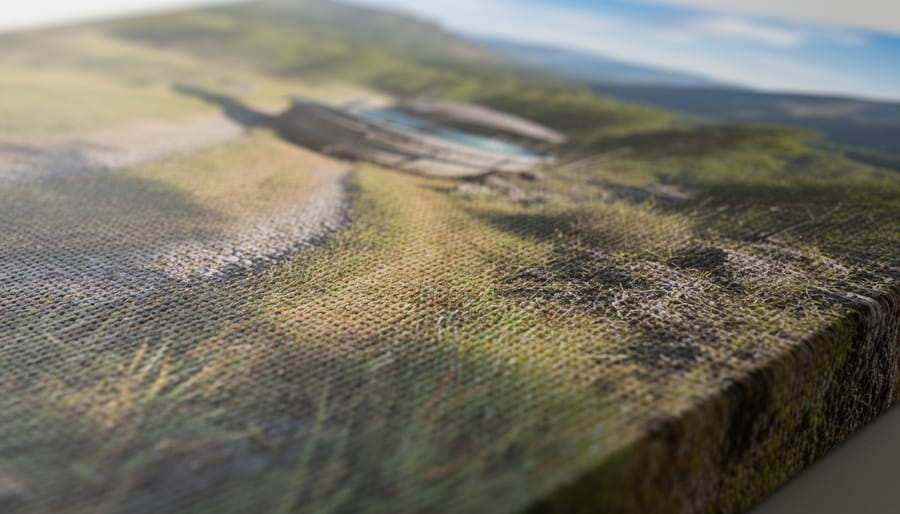
When your calculator shows a red or yellow zone for your intended print size, you have several practical options. The first decision is whether the shortfall matters for your specific use case.
Your main solutions include:
- Scale down to the next smaller standard print size (e.g., 16×20 instead of 20×30 inches)
- Increase the intended viewing distance, which allows you to drop to 200 or even 150 PPI
- Use AI upscaling software like Topaz Gigapixel or Adobe Super Resolution with realistic expectations
- Choose textured print media such as canvas or fine art paper that naturally softens pixel-level imperfections
- Accept 200-240 PPI for prints that won’t be examined closely, like event photos or casual gifts
- Crop differently to maximize resolution in the most important part of your composition
AI upscaling has improved dramatically, but it’s not magic. These tools analyze your image and intelligently add pixels, often producing clean results at 1.5× to 2× enlargement. Beyond that, you’ll notice softness and artifacts, especially in fine textures. Run a test print at a smaller size first.
Selective sharpening in Lightroom or Photoshop helps keep sharp details crisp while avoiding over-processing smoother areas. Focus your sharpening on eyes, key edges, and important texture zones rather than applying it globally. This targeted approach makes borderline images work at slightly larger sizes than raw calculations suggest.
Print medium makes a bigger difference than most photographers realize. Canvas naturally diffuses detail, hiding resolution limitations that would be obvious on glossy paper. Metallic prints similarly mask minor softness through their reflective surface texture. Match your medium to your file’s capabilities.
The reshoot question comes down to stakes and feasibility. For paid client work, gallery exhibitions, or significant personal projects, reshoot if you can. For unrepeatable moments like travel photography or family events, work with what you have. The techniques that helped you capture sharp handheld shots matter less than making smart printing choices now.
Common Questions About Print Resolution Calculations
When you’re sizing images for print, the same questions come up repeatedly. Here are the answers to what photographers ask most often.
Can I print large prints from phone photos?
Modern smartphones capture 12-48 megapixel images that can produce excellent prints at moderate sizes. An iPhone 14 Pro’s 48MP file prints beautifully at 16×20 inches at 300 PPI, and even larger if you’re hanging it on a wall where viewers stand back a few feet.
What’s the actual difference between 300 PPI and 300 DPI?
PPI (pixels per inch) describes your digital image file, while DPI (dots per inch) describes how your printer lays down ink. For practical purposes when preparing files, treat them as the same thing, just specify 300 PPI in your image editor and you’re set.
Do canvas prints really need 300 PPI like photo paper?
No. Canvas texture naturally hides resolution limitations, so 150-200 PPI often looks excellent, especially for larger prints viewed from normal distances. The fabric weave softens the image slightly, making lower resolutions less noticeable than on glossy photo paper.
Will professional print labs reject my file if it’s below 300 PPI?
Most labs print whatever you send and include a quality warning rather than rejecting orders outright. However, they won’t take responsibility for soft or pixelated results, so verify your resolution before placing expensive orders.
Beyond these common concerns, cropping deserves special attention because it’s where many photographers lose track of their printable size. Every time you crop an image, you’re discarding pixels and reducing the maximum dimensions you can print. A 6000×4000 pixel file that prints at 20×13 inches becomes a 3000×3000 pixel square after a 1:1 crop, limiting you to 10×10 inches at 300 PPI. Run your calculator on the cropped dimensions, not the original file size.
The “print size” display in Photoshop’s Image Size dialog trips people up constantly. That number shows what size your image would print at its current PPI setting, which might be 72 PPI from a web export or 240 PPI from a previous project. It doesn’t tell you the optimal print size or quality, just what dimensions result from the embedded resolution metadata. Always verify the actual pixel dimensions and calculate from there rather than trusting this display value.
Print medium genuinely affects your PPI requirements. Glossy photo paper shows every detail and demands higher resolution. Matte papers are slightly more forgiving. Canvas, metal prints, and textured art papers all hide resolution issues better than gloss. If you’re printing a borderline-resolution file, choosing the right surface can be the difference between acceptable and disappointing results. Factor in both the medium and viewing distance together, not just one variable.
Print resolution calculators take the mystery out of ordering prints and help you avoid expensive mistakes. Instead of guessing whether your image will look sharp at a given size, or blindly accepting whatever a print lab recommends, you now have the tools to make informed decisions based on actual numbers. That confidence is worth its weight in wasted prints and reorders.
The Print Resolution Test & PPI Scaling Calculator gives you this clarity in seconds. Plug in your image dimensions, specify your desired print size, and you’ll know immediately whether you’re in the safe zone or pushing your file too far. No complex math required, no uncertainty about whether that canvas print will reveal pixelation when it arrives at your door.
More importantly, understanding how resolution, print size, and viewing distance interact gives you creative control. You’re not stuck with standard sizes or conservative recommendations when you know a 30×40 inch print viewed from across the room needs far less resolution than an 8×10 portfolio piece. You can make deliberate choices about where to crop, which images to enlarge, and when a slightly lower PPI is perfectly acceptable for your specific project.
Take five minutes to test the calculator with a few of your own files. See how your camera’s resolution translates to real-world print dimensions. Once you’ve run the numbers a few times, sizing images for printing becomes second nature, and you’ll never wonder again whether your photos can handle that beautiful large format you’ve been considering.


 By
By