 By
By 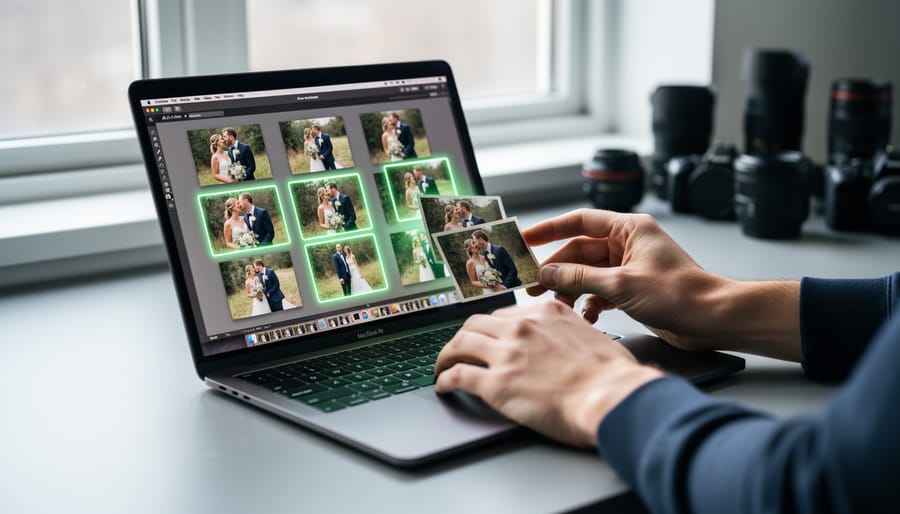
AI photo culling uses machine learning algorithms to automatically scan, rate, and sort your images based on technical quality markers like sharpness, exposure, and facial expressions. Instead of spending 8 to 10 hours manually reviewing 3,000 shots from a wedding or event, you can have specialized software pre-sort your library in under an hour, flagging the keepers and filtering out duplicates, blurry frames, and closed eyes. The technology has matured significantly, with leading tools now achieving 85-90% accuracy in matching professional photographers’ own selection criteria.
The workflow is straightforward: you import your raw files into an AI culling platform, the software analyzes each image against technical benchmarks you define (minimum sharpness thresholds, preferred composition rules, acceptable exposure ranges), then assigns star ratings or color labels that integrate directly with Lightroom, Capture One, or Photo Mechanic. You review the AI’s picks, make final adjustments, and delete the rejects.
This process matters because the volume problem keeps getting worse. Modern cameras shoot 20 frames per second, and a typical portrait session can generate 1,500+ images. Clients expect fast turnaround, and spending half your billable time just deciding which shots to keep isn’t sustainable. AI culling doesn’t replace your creative judgment for final selects, but it eliminates the obvious failures so you can spend your energy on the nuanced choices that actually matter.
What follows is a complete workflow for implementing AI culling in your photography business, from choosing the right software to verifying the results before permanent deletion.
What You’ll Need to Get Started

Before you dive into culling, you’ll need a few essentials. The good news is that modern AI photo managers have become more accessible and powerful throughout 2026, with options for every budget and workflow.
Here’s what you’ll need:
- AI culling software such as Narrative Select, Aftershoot, or FilterPixel
- A computer with at least 8GB RAM and a modern processor (16GB recommended for large batches)
- Sufficient storage space for your photos, ideally on an SSD for faster processing
- A stable internet connection if you’re using cloud-based culling tools
For software, you have several solid choices. Aftershoot and FilterPixel are popular standalone applications that work on both Mac and Windows, processing everything locally on your machine. Narrative Select offers a streamlined interface particularly favored by wedding and event photographers. If you prefer cloud-based processing, Photo Mechanic Plus and Imagen AI offer subscription models that offload the computational work to their servers.
Hardware requirements vary by tool, but most AI culling apps will run on a mid-range laptop from the past three years. Processing speed scales with your specs: a newer machine with 16GB of RAM and a solid-state drive will breeze through a thousand photos in minutes, while an older system might take twenty. If you’re culling multi-thousand-image shoots regularly, the hardware investment pays off quickly.
You’ll also need your photo files in a supported format. Most tools handle JPEGs and common RAW formats from Canon, Nikon, Sony, and Fuji cameras. Check compatibility for newer camera models released in 2026, as some culling apps update their RAW support on a rolling basis. Organize your files into folders by shoot or date before importing, which makes the process smoother and helps you stay organized after culling.
Before You Start: Important Considerations

Before you start culling, you need to protect yourself from potential disasters. AI photo culling tools can delete or flag images for deletion in seconds, and that speed becomes dangerous if something goes wrong.
Most modern AI culling applications use non-destructive workflows, meaning they flag or rate images rather than immediately deleting them. Still, verify your chosen software’s behavior before processing important work. Check whether it marks files, moves them to folders, or actually removes them from your drive.
Understand that AI suggestions are exactly that: suggestions. The algorithms analyze technical factors like sharpness, exposure, and in portraits, facial expressions, but they cannot understand context, emotion, or your artistic intent. That slightly soft portrait where your subject laughed genuinely might score lower than a technically sharper but emotionally flat alternative. You remain the final decision maker.
Privacy deserves consideration too. Cloud-based culling services upload your photos to remote servers for processing, which means your images and image metadata pass through third-party systems. For client work, especially weddings or sensitive projects, check your contracts and privacy obligations before using cloud solutions.
AI culling isn’t appropriate for every project. When you’re shooting experimental or artistic work where “mistakes” contribute to the aesthetic, or when you’re deliberately embracing blur, unconventional composition, or technical imperfection, AI tools will likely flag your best shots as rejects. In these cases, manual culling remains the better choice.
How AI Photo Culling Actually Works
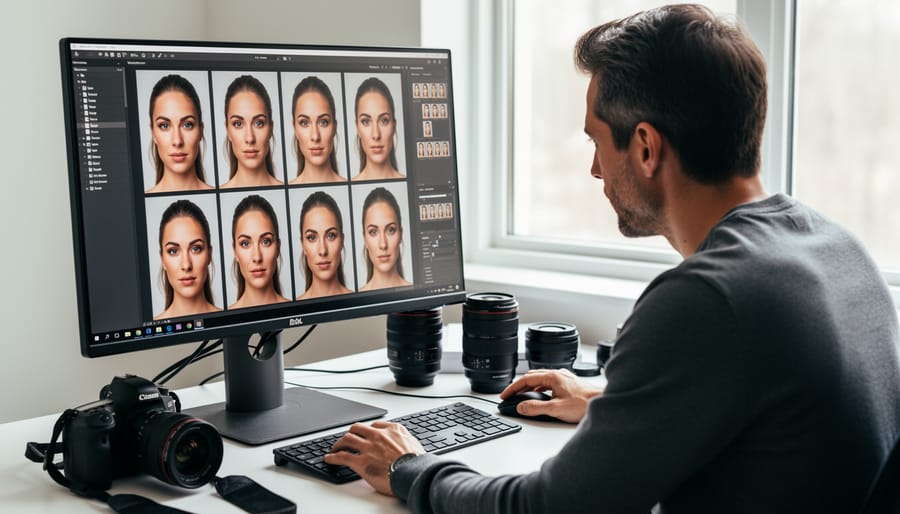
When you click “analyze” in an AI photo culling app, you’re setting in motion a trained neural network that’s learned to evaluate images the same way an experienced photographer would, but much faster.
The AI starts with the technical basics. It measures sharpness by examining edge contrast and fine detail throughout the frame, checking whether your subject is properly focused or if there’s motion blur. It evaluates exposure by analyzing the histogram, flagging images that are too dark, too bright, or have blown highlights. Noise levels get assessed too, with the AI detecting digital grain that might make an image less usable at larger sizes.
Next comes compositional analysis. The AI identifies your main subject and checks its placement against established rules like the rule of thirds and visual balance. It recognizes faces and determines if they’re positioned in strong compositional zones. For landscape shots, it can detect horizon lines and flag images where the horizon is crooked or poorly placed.
Portrait photography gets the most sophisticated treatment. Modern AI culling tools use facial recognition to group similar shots, then analyze micro-expressions to identify which frames captured the most natural smile, best eye contact, or most relaxed expression. They can detect whether eyes are open or closed, if someone’s mid-blink, or if the subject is looking away from the camera, critical factors that make or break portrait sessions.
The AI assigns each image a score based on these combined factors, weighted according to your settings. This score is what determines whether a photo gets marked as a keeper, a maybe, or a reject. Understanding these evaluation criteria helps you adjust the settings to match your shooting style and know when to trust the AI versus when to override its judgment.
Step-by-Step: Culling Your Photos with AI

Step 1: Import and Organize Your Photos
Start by launching your AI culling software and importing your shoot. Most applications let you drag entire folders directly into the interface or use an import dialog to browse to your files. Point the software to your memory card or the folder where you transferred your RAW files.
Create a clear folder structure before importing. For a wedding shoot with 2,000+ images, create a parent folder named with the date and event (like “2026-09-15_Smith-Wedding”), then organize subfolders by ceremony, reception, portraits, and details. This makes it easier to organize photos when the AI analysis runs, since you can process each section separately or prioritize certain parts.
Many culling apps automatically detect duplicates and group similar shots during import. Enable this feature if available. It saves time later when the AI starts comparing nearly-identical frames from burst sequences.
Name your import session clearly in the software so you can return to it later without confusion. If you shoot multiple events per week, consistent naming prevents mixing up projects when you’re juggling several culling sessions.
Step 2: Configure Your AI Culling Settings
Most AI culling applications launch with moderate default settings, but spending two minutes customizing them to your shoot type dramatically improves results. Open your software’s preferences or settings panel before running the analysis, you’ll typically find sliders or dropdowns controlling how aggressively the AI filters your images.
Start with the overall sensitivity or threshold setting. If you’re culling a portrait session where you need only five perfect shots from hundreds, crank the sensitivity high so the AI becomes more selective. For event photography where you need broader coverage, dial it down to keep more images in contention.
Next, adjust individual quality criteria weights. Most applications let you prioritize specific factors: sharpness detection, exposure accuracy, composition scoring, and for people photography, facial expression analysis. If you’re sorting landscape images, disable or minimize the facial expression weight entirely and boost sharpness and composition scoring instead. For headshot sessions, do the opposite, facial expression and eye sharpness should carry the most weight.
Many cullers also let you set minimum thresholds. You might specify “reject anything below 60% sharpness” or “flag images with closed eyes for immediate review.” Sports photographers often lower sharpness thresholds slightly since peak action moments sometimes sacrifice technical perfection for the decisive instant.
Save your customized profile once you’ve dialed in settings for a particular photography style, you can reload “wedding portraits” or “landscape batch” configurations for future shoots without starting from scratch.
Step 3: Run the AI Analysis
Hit the analyze or scan button and the AI gets to work. Most culling apps display a progress bar showing how many images it’s processed, you’ll see it chewing through your library at anywhere from 50 to 200 images per minute, depending on your computer’s specs and the file sizes you’re working with. A typical 500-photo portrait session finishes in 2-4 minutes, while a massive 3,000-image wedding might take 15-20 minutes.
The AI assigns each photo a numerical score or star rating as it works. Common systems use 1-5 stars or a 0-100 point scale, with higher numbers indicating better technical quality and composition. Some applications color-code results, green for keepers, yellow for maybes, red for rejects.
Don’t just sit and watch the progress bar. This is perfect time to grab coffee, check your email, or start organizing your next shoot’s folder structure. If you’re processing a truly massive library, some photographers run the analysis overnight or during lunch. Just make sure your computer won’t go to sleep mid-scan, adjust your power settings beforehand if needed.
Step 4: Review AI Suggestions and Ratings
Once the AI finishes analyzing your images, you’ll see each photo tagged with a rating or score, typically stars, numbers from 1-10, or color-coded labels. Most applications place the highest-rated images at the top when you sort by score, making your best shots immediately visible.
Start by reviewing the top-rated group. The AI has identified these as technically superior based on sharpness, exposure, and composition. In a portrait series, for example, you might see that the AI gave a 9/10 to shots where the subject’s eyes are perfectly sharp, their expression is natural (no mid-blink or awkward mouth positions), and the composition follows established rules. Compare this to similar frames rated 5/10 where perhaps the focus missed slightly or the subject was mid-gesture.
Pay attention to how the software groups similar shots. If you fired off ten frames in burst mode, the AI typically clusters them together and highlights the sharpest one with the best expression. This grouping saves enormous time, instead of comparing ten nearly-identical images yourself, you can trust the AI caught the moment where eyes were open and the smile looked genuine.
Don’t just accept the top scores blindly, though. Scroll through the mid-range ratings (your 5-7 scores) because the AI might have downgraded a shot for technical reasons while missing its emotional impact. That slightly soft portrait where your subject laughed genuinely might matter more than the technically perfect but stiff expression the algorithm preferred.
Step 5: Make Your Final Selections
The AI has done the heavy lifting, but now comes the most important part: applying your creative judgment to finalize your selections. Think of the AI’s ratings as a smart assistant’s recommendations, not final decisions.
Start by reviewing the mid-range scores, typically photos rated 3 out of 5 or similar depending on your software. These borderline images often include shots where the AI caught technical issues but missed the emotional impact. A slightly soft portrait might have a genuinely candid smile that beats a sharper but stiff expression. Trust your eye here.
Look specifically at grouped similar shots. When the AI analyzed a burst of ten near-identical frames, it might have picked the sharpest one, but perhaps frame seven has better body language or a cleaner background. Scrub through these sequences yourself and swap selections when your instinct disagrees.
Don’t hesitate to override the AI when your artistic vision conflicts with technical perfection. If you intentionally shot with shallow depth of field for a dreamy portrait effect, the AI might have flagged it as “too soft” and ranked it lower. Similarly, moody underexposed images or intentional motion blur can confuse algorithms trained on conventional exposure and sharpness.
As you work, mark your absolute keepers with a color label or five-star rating to separate them from maybes. Aim to reduce your initial AI-filtered set by another 30-50% during this manual review phase, leaving only images you’d confidently show a client or publish.
Checking Your Results and What Comes Next
After the AI finishes, don’t just export and move on. A quick verification pass catches mistakes and ensures you’re working with the right images. Think of this as quality control before you invest hours editing.
Start by spot-checking your rejected photos. Jump into the discard pile and scroll through 20-30 random images. You’re looking for that one shot where the subject’s genuine laugh makes up for slight softness, or the candid moment that AI dismissed because of unconventional composition. I find gems this way about 15% of the time, especially in event work where emotion trumps technical perfection.
Next, review your keepers at 100% magnification. AI algorithms excel at detecting overall sharpness, but they can’t always distinguish between accurate focus on the subject versus sharp background detail. Click through your top-rated portraits at full size to confirm critical focus on the eyes, not the ear or collar behind them.
- Scroll through a sample of rejected photos to catch any keepers the AI missed
- Check for emotionally compelling shots that failed technical criteria
- Verify your final keeper count aligns with typical ratios for your shoot type
- Zoom to 100% on portraits to confirm focus landed on eyes, not nearby elements
For keeper ratios, expect to retain about 10-15% from weddings or events (200-300 keepers from 2,000 shots), 20-30% from portrait sessions, and potentially 40-50% from commercial product work where every angle matters. If your numbers fall way outside these ranges, revisit your AI sensitivity settings before the next shoot.
Once you’re confident in your selections, export your keepers to your editing software. Most AI culling apps let you flag or star-rate images, which your editor can read directly. Now’s also the time to integrate AI workflow steps: some photographers send keepers straight to AI editing assistants for initial adjustments, while others prefer manual control at this stage.
Archive your full shoot to external storage before deleting rejects from your working drive. Give yourself a week with the finals before permanently removing culls. I’ve had clients request “that other shot” enough times to appreciate this cooling-off period.
Common Issues and How to Fix Them
Even the best AI culling tools occasionally make decisions that leave you scratching your head. The good news is that most issues stem from settings that need tweaking rather than fundamental flaws in the technology.
AI Keeping Too Many or Too Few Images
If you’re ending up with 80% keepers when you wanted 20%, your quality threshold is set too low. Open your culling app’s settings and increase the minimum score or star rating required for an auto-select. Most applications let you adjust sensitivity from “conservative” (fewer picks) to “generous” (more picks). Start conservative and loosen from there.
Conversely, if the AI is only keeping 50 shots from a 1,000-image wedding, it’s being overly strict. Lower your sharpness requirements slightly, especially if you shoot with shallower depth of field where not everything needs to be tack-sharp. Some photographers find success adjusting from “excellent” to “good” quality thresholds, which can double their keeper rate while still eliminating obvious rejects.
When AI Misses Your Artistic Vision
AI algorithms prioritize technical perfection, which means they’ll often reject slightly soft shots with beautiful mood or intentional motion blur. If you shoot creative work where a technically “imperfect” image tells a better story, disable or reduce the sharpness weighting in your settings. Many apps let you weight factors differently, crank up composition and expression scoring while dialing back technical perfection.
For action and sports photography, standard sharpness criteria work against you since peak moments often involve motion. Switch your app to “sports mode” if available, which prioritizes decisive moments and facial expressions over absolute sharpness. You can also manually flag your burst sequences before running AI analysis, then have the tool pick the best frame within each burst rather than comparing action shots to static portraits.
Handling Difficult Lighting Conditions
Low-light event photography and unusual lighting throw many AI systems for a loop. The algorithm might reject properly exposed candlelit reception shots because they look “underexposed” compared to outdoor ceremony images. Create separate culling sessions for different lighting environments rather than running everything through one analysis. Rate your low-light work separately with adjusted exposure tolerance settings.
Similarly, backlit shots, silhouettes, and high-contrast scenes often get dinged unfairly. If your shoot includes intentional creative lighting, pre-flag those sequences and review them manually rather than letting AI apply standard exposure criteria.
Why did the AI reject shots I absolutely love?
AI prioritizes technical metrics like sharpness and exposure over emotional impact or creative intent. Always review your rejects folder for mood shots, artistic blur, or unconventional framing that didn’t fit the algorithm’s rulebook.
How do I handle low-light event photos where everything looks underexposed?
Cull low-light portions separately with adjusted settings, or disable exposure weighting and focus only on sharpness and composition. Most apps let you create custom profiles for different shooting conditions.
Can AI culling handle scanned film images?
Results vary since film grain confuses sharpness algorithms. Lower your technical quality thresholds significantly or use AI only for grouping similar shots, then manually select from each group.
What if the AI gives identical high scores to an entire burst sequence?
Enable “group similar shots” or “stack duplicates” features, then manually pick the best expression or moment from each stack rather than keeping all equally-scored frames.
Remember that these tools learn from thousands of conventional images, which means unconventional work might need more manual intervention. Treat AI culling as a starting point that gets you 80% of the way there, then apply your own judgment to handle the edge cases that require a photographer’s eye.
AI photo culling transforms what used to be the most tedious part of photography into a manageable task that takes minutes instead of hours. The technology has matured significantly throughout 2026, delivering impressive accuracy in identifying technically superior images and filtering out obvious rejects. But the real power comes from treating AI as your first-pass assistant rather than your final decision-maker.
Your creative vision still matters. The AI excels at spotting sharp eyes and proper exposure, but it can’t read your artistic intent or understand the narrative flow you’re building in a series. That’s where you come in during the review stage.
Start small with your next shoot. Import your files, run the AI analysis with default settings, and see how well it aligns with your natural selections. Adjust the sensitivity and criteria based on what you learn. Most photographers find their sweet spot after culling two or three sessions.
Remember that culling only gets you to your selects. The real work of editing, color grading, and crafting your final gallery still lies ahead. But by reclaiming those hours you used to spend clicking through thousands of near-identical frames, you’ll have more energy for the creative decisions that actually define your photography.





 By
By